2008年12月30日星期二

[转帖]关于开发中的一些杂的体会

 http://www.cppblog.com/Fox/archive/2008/12/28/70542.html
此处顺便谈谈关于开发中的一些杂的体会。
对于工作不久的同学而言,拿到一个任务有可能出现以下两种情况:
1. 以快速开发为重,前期进展较快,在小型模块开发中顺风顺水,但在面对复杂任务时,因为对前期设计重视不足,后期会不断调整代码,甚至在基本功能开发结束后,因为逻辑架构问题,导致bug隐患较多较深,容易陷入泥沼,痛苦挣扎;
2. 随时随处追求代码结构的优美和执行效率的优化,精益求精,往往在前期设计上花费过多的心思,以达到较合理的逻辑结构,甚至拖延整个项目的开发进度,这种同学一般说来,代码质量较高,后期bug较少。
其实,上面说的就是我自己,我刚开始工作的时候,上面给我一个编写独立工具的任务,当时急于表现,缺乏项目实战经验,为编码而编码,逻辑结构不注重扩展性,设计不合理,在进行到后期时,面对出现的新需求无法应对,导致最后推到重来。
后来,慢慢接受了注重前期设计的观念,更因为自己的完美情结和代码洁癖,不仅经常调整自己编码中不优美的片段,甚至越俎代庖去修改其他同事的代码,追求处处的高效,耗费大量时间精力,难以自拔。
在任何一个项目中,都有轻重主次之分,也就是所谓的『8020原则』,关于『8020原则』怎么理解都行,我的理解就是,每个项目中的效率瓶颈是20%的核心代码,80%的时间和工作重心应该放到这20%的核心代码上。放到一个小的模块中也是这样,应该确定工作重心,在开发进度的限制下,对核心代码精益求精,对非效率瓶颈可以适当减少侧重。
对于新人,最难的就是从整体的高度确定20%的工作重心,这主要依赖于自身素质的提高和开发经验的积累。而对需求深入细致的分析和对逻辑精益求精的设计本身可以训练一个人分析问题、解决问题的能力。
总结一下的话,也正是我们项目组历来所倡导和坚持的:
1. 精益求精;
2. 细节决定成败,态度制约能力。
////////////////////////////////////////////////////////////////////////////////////////////////////////////////////////////////////
我现在正是2那种状态!!!

[转帖]TP-LINK 路由器 + 花生壳 + IIS 架设 HTTP 和 FTP 服务器

http://www.cnblogs.com/WarrenTang/archive/2008/09/09/1287990.html

这种方法能使没有固定IP的机器被访问到。


1. 用IIS建立HTTP和FTP站点。


2. 申请花生壳免费域名,并激活花生壳服务。


3. 进入TP-LINK路由器管理界面 > 动态DNS,选择"启动DDNS",输入用户名密码后点击"登录"。登录成功后免费域名会显示出来。


4. 进入TP-LINK路由器管理界面 > 转发规则 > 虚拟服务器,将80和21端口映射到服务器的局域网IP。


5. 打开控制面板 > Windows防火墙 > 高级 > 设置,勾选Web服务器和FTP服务器。


完成以后我们就可以用免费域名访问我们的服务器了。如果你没有带DDNS功能的TP-LINK或D-LINK路由器,可以用花生壳客户端替代。

2008年12月27日星期六

近期总结

最近还是在忙原来的那个项目,本来现在应该弄完的,但是由于出差等原因还没有完成。马上就2009年了,也该总结一下了。
 
1,兴趣太广泛,导致目标点太多,关注的太多,而浪费了大量的时间。大量的时间用于搜索,而不是钻研。
今后应该有所侧重,主要精力放在项目上。仔细钻研相关的知识,力求熟练。晚上的时间可以关注一下其他感兴趣的,但是搜索的时间也不要太长,每晚以最多40分钟为宜。
 
2,太懒散,注意力很难长时间集中,经常一会儿写写程序,一会儿看看网页,而浏览的内容也没有仔细的思考;
有意识的加强这方面的锻炼,注意力集中;每天上班之后,不再查邮件,查google reader,而直接进入工作状态;晚上浏览;
 
3,做事经常先做容易的,而不愿意做难的那部分,选择逃避;
应该先做难度大的,後做容易的部分;
 
4,做计划不符合实际情况,往往无法完成;
总结经验教训,计划要留余量。
 
总之,要充分利用时间,提高学习和工作的效率,思考!
 
///////////////////////////////////////////////////////////////////////////////
发现自己对一个东西的兴趣持续时间不是很长,所以尽量的在感兴趣的时间内,学习钻研,完成项目。
发现自己适合解决问题,而不喜欢做一个大的工程。
 
 
明年的主要工作:
学习嵌入式linux开发
学习FPGA和CPLD
学习算法分析
 
复习数据结构 数电 模电 数学
在看完手头上的几本书后,主要研读编程珠玑 linux device driver , SICP和CLRS
TAOCP争取能看一些。
 
这些已经不少了!!希望能完成!
///////////////////////////////////////////////////////////////////
另外,希望09年能找到生命的另一半,得之,我幸,不得,我命。

超强的OMAP3开发板beagle国内竟然有卖了

http://www.realtimedsp.com.cn/product/detail.asp?ID=272

http://www.linuxforum.net/forum/postlist.php?Cat=&Board=embedded  这里还有个强人开发一块开源的板子

/////////////////////////////////////////////////////////////////////////////////////////////////////

 面向多媒体智能设备的解决方案:

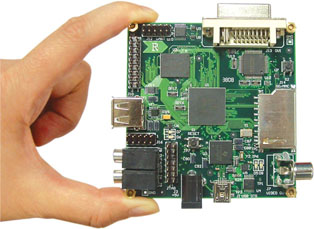
ICETEK-OMAP3530-MINI

    OMAP3530高性能应用处理器是基于增强的OMAP3建构。OMAP3建构在流媒体、2D/3D移动游戏、视频会议、高清静态图象、视频捕获、多媒体手机、高性能PDAs待方面为用户提供最好的视频、图象及图形处理方面的支持。

ICETEK-OMAP3530-MINI 

超小体积:名片大小计算机
超高性能:集成了ARM、DSP、图形引擎及外设集
                最新ARM Cortex-A8内核
                四倍于ARM9处理能力
超低价格:全国1000套特价产品推广销售 

ICETEK-OMAP3530-MINI

硬件特点:

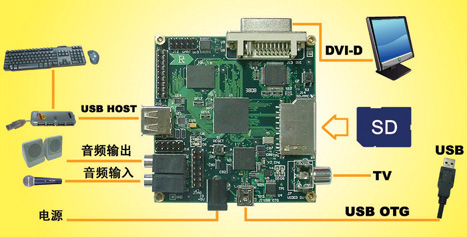
  • OMAP3530应用处理器:
    • CPU:430-MHz TMS320C64x+TM DSP Core
    • 600-MHz ARM CortexTM-A8 Core
  • USB HOST
  • 14-PIN JTAG调试仿真接口
  • UART接口
  • LEDs指示灯
  • Mini AB USB接口
  • 音频输入接口,音频输出接口
  • SD/MMC接口
  • 用户按钮
  • 复位按钮
  • 视频接口:DVI-D视频接口(可连接DVI接口液晶监视器);TV接口
  • 供电模式:USB供电;DC供电
  • 扩展接口:电源(5V&1.8V),UART,McBSP,MCSPI,I2C,GPIO,MMC
  • 可通过USB和标准PC外设,获得灵活而广泛的扩展
  • 目标板结构紧凑,外形小巧,尺寸仅为76mm×79mm

软件特点:

  • 操作系统:Debian的ARM发行版
  • Ubuntu的ARM发行版等多种Linux发行版
  • 支持open GL 2D/3D加速
  • 实时多媒体encode/decode

主要应用领域:

  • 便携式导航设备/便携式数据收集
  • 便携式媒体播放器/高级便携式消费类电子
  • 数字电视/数字视频照相机
  • 游戏类产品/网络写字板等

2008年12月25日星期四

转帖:如何让Blogger加入Google Friend Connect

http://foolbear.blogspot.com/2008/12/bloggergoogle-friend-connect.html

都是Google自家的产品,这次果然没有让我们失望。

收到Google Friend Connect邀请后,我立刻试用,看到需要上传两个文件,我还以为Blogger不能添加这个功能呢。后来瓦特比在我的文章后留言,说是这两个文件会自动上传的。我一试,果然如此,只要直接continue就好了。

我已经在我的Blogger《大笨熊乐园》添加了Google Friend Connect,即位于左边side bar上的"好友联系",有兴趣的朋友可以点击"Join this site"按钮来加入它。

这里简要的介绍一下让Blogger加入Google Friend Connect的过程:

* 收到Google Friend Connect的邀请后,点击mail中的link,或者直接进入http://www.google.com/friendconnect/
* 点击"Set up a new site"按钮进入。
* 在"Overview"界面里,直接点击"Continue"。
* 填入"Site name"、"Home URL","Home URL"就是你的Bogger地址,如http://foolbear.blogspot.com/
* 在"Add the following files to your site"中,会要求你上传"http://foolbear.blogspot.com/rpc_relay.html"和"http: //foolbear.blogspot.com/canvas.html"这两个文件,这对一般的站点是必须的,但是对于Blogger,可以略过,直接点击"Continue"。
* 在"Test your setup"中,直接点击"Test to finalize setup"即可。
* 在"Add a Members gadget to your site"中,点击进入"Get code for the Members gadget"。
* 在"Set up the Members gadget"中调整各个参数后,点击"Generate code"按钮,copy这段代码。
* 打开Blogger的控制台,进入"布局-页面元素"。
* 在需要的位置点击"添加小工具",从"基本"中添加"HTML/JavaScript"。
* 配置"HTML/JavaScript"的窗体中,加入一个标题,然后再内容中粘贴上刚才在Google Friend Connect上拷贝的那段代码。
* 保存这次页面元素的修改即可,Google Friend Connect就已经添加到你的Blogger中了。

上面的过程是加入"Members gadget",这类似于一个成员的管理。同样的办法,我们还可以加入"Sign In gadget"、"Wall gadget"、"Review/Rate gadget"。

* "Sign In gadget"- 类似于Blogger顶部的登录条。
* "Wall gadget"- 类似于留言簿的功能,可以参考我的blogger的左侧side bar中的"访客留言"。
* "Review/Rate gadget"- 和"Wall gadget"类似,只是多了一个评级的功能。

当然你有足够的能力,也能写出自己的Gadget。

同时我发现Google Friend Connect有几个问题:

* 访客通过"Wall gadget"和"Review/Rate gadget"发表的言论可以设定需要网站主人审核,但是只能在Google Friend Connect中的"Moderate posts"里审核,更合理的方式是应该email给网站主人。
* Google Friend Connect可以不断的加入新的网站,但居然不能删除,删除的地方倒是很难找到,位于"Site settings - Alternatively, you can delete Friend Connect from this site",会需要你键入"yes"来确认你的删除动作。

2008年12月23日星期二

转 Getting started with an embedded Linux system emulator

 
by Gilad Ben-Yossef (Dec. 22, 2008)

Foreword -- This article describes setting up an embedded Linux cross-development environment targeting a virtual machine running on the development host. It covers installing Qemu and using it to debug applications and kernels, both with supplied test-images and with custom kernel/filesystem images created with Buildroot.

The article was written by Gilad Ben-Yossef, co-founder of Israel-based embedded Linux training and consulting firm Codefidence. Ben-Yossef originally published the article on his
Tuxology blog. Enjoy . . . !


Building an embedded Linux system emulator
by Gilad Ben-Yossef


One of the hallmarks of embedded system programming is working with specialized hardware. Unfortunately, embedded system developers do not always have the luxury to develop and test their code on the actual hardware they target. Often, the hardware is developed in tandem with the system software and therefore it it is not available for much of the embedded system software development cycle.

While one can develop and test much of our code on a PC running Linux, such a PC is a very different environment from the target board. More often then not, the target board is not even of the same architecture as the PC. A solution to this problem can be obtained by using an emulator - a software tool that executes software code of our target platform in a virtual machine that is running on our development host, and running our system software in it.

The following article describes how to build an embedded Linux system running inside an emulator which can be used to develop, test and debug target code even without access to target hardware.


The components

To build our emulator we will need the following components:
  • Hardware emulator (we'll use Qemu)
  • Minimal Linux root file system containing a C library and Busybox
  • The Linux kernel

Installing Qemu

Created by Fabrice Ballard, Qemu is an open source machine emulator supporting seven target architectures, including x86, MIPS, ARM, and PowerPC. As first step, we will download and install the emulator. Depending on the Linux distribution you use on your workstation, you might be able to use the native package management system of the distribution to do so.

For Debian, Ubuntu and derivatives:

$ sudo apt-get install qemu

For Fedora and derivatives (as root):

# yum install qemu

For other distributions lacking a Qemu package, or for those wishing to obtain the very latest package (note that the "i386" label refers to the host running the emulator, and not the target platform):

$ wget http://bellard.org/qemu/qemu-0.9.1-i386.tar.gz
$ cd /
$ sudo tar zxvf qemu-0.9.1-i386.tar.gz

Or, as root:

# tar zxvf qemu-0.9.1-i386.tar.gz

Alternatively, you can download the sources and build the emulator from scratch. This has the added advantage that you can later adapt the emulator to more accurately reflect your actual hardware:

$ wget http://bellard.org/qemu/qemu-0.9.1.tar.gz
$ tar zxvf qemu-0.9.1.tar.gz
$ cd qemu-0.9.1/
$ ./configure
$ make
$ sudo make install

Or, as root:

# make install


Kernel and file system images

The Qemu emulator we have just installed provides a virtual machine mimicking our target hardware. To actually get Linux running on this virtual machine, however, we will need to download an image of the Linux kernel and a suitable root file system image for our target architecture.

Luckily, the Qemu project provides test images for several architectures that can be used to get a fast start with Qemu as an embedded Linux system emulator. Go to the Qemu project download page and choose one of the Qemu test disk images suitable for your embedded platform and download it to your Linux host (in this example we use ARM):

$ wget http://bellard.org/qemu/arm-test-0.2.tar.gz

Now extract the image:

$ tar zxvf arm-test-0.2.tar.gz
$ cd arm-test


Booting Linux on the emulator

Start up Qemu with the following command line, adjusting the architecture name, kernel file name, and root file system image name according to your specific architecture (again, we use ARM in this example):

$ qemu-system-arm -kernel zImage.integrator \
-initrd arm_root.img -tftp / -redir tcp:9999::9999

The above command line starts Qemu in system emulation mode, booting into the kernel image zImage.integrator while loading into the virtual machine RAM the arm_root.img file system, and instructing Qemu to make your entire host root file system available for access via TFTP from the emulated machine (more on this ahead).

You should now be seeing a window similar to the following in which the emulated LCD display of the board is shown:


Qemu screenshot
(Click to enlarge)


You can log-in with the user "root" -- no password is required.


Transferring files to and from the host

The emulator and file system are set up to automatically configure a virtual Ethernet interface in the virtual machine with an internal IP. Through that virtual network interface, the emulator is set up to enable transferring of files to and from the host machine file system using the TFTP protocol.

For example, the following command will copy the file "/home/gby/hello_emu" from the host file system to the current directory inside the emulator:

$ tftp -g -r /home/gby/hello_emu -l hello_emu 10.0.2.2

The following command will copy the file "/root/test.log" from the emulator to the host file system directory "/home/gby/":

$ tftp -p -l/root/test.log -r /home/gby/test.log 10.0.2.2

In addition, you can use the "wget" comment to transfer files using the FTP and HTTP protocol to the emulator from any compatible server accessible in the network:

$ wget http://codefidence.com/some/file

Qemu supports numerous other way to interact with the host and it's environment, including bridged virtual network interfaces (as opposed to the default NAT used in the example above). Bridged virtual network interfaces enable:
  • Using NFS to communicate with the host
  • Remote debugging from the host
  • VLAN support
  • Exposing the host file system as a FAT file system
  • Mounting disk, flash, or CDROM images from the host file system
  • Using USB devices connected to the host
For more information on these advanced options, please refer to the Qemu user manual.


Debugging user applications

Using the GNU debugger GDBserver agent, we can debug applications running inside the emulator using the GDB debugger on the host. To do this, first use one of the methods outlined above to copy the "gdbserver" executable to the emulator. Note that you will need a gdbserver executable that was built to run on the target architecture (such as ARM, in the example above), and not on that of the host!

Also note that since the test images do not contain debugging symbols for the system libraries, you will only be able to debug statically compiled applications using them. This limitation can be removed by building your own kernel and file system image (see below for more information on this topic).

$ tftp -g -r /home/gby/src/gdb/gdb/gdbserver/gdberver \
-l gdbserver 10.0.2.2

Next, assign the gdbserver binary execute permissions:

$ chmod u+x gdbserver

Now, run the gdbserver agent, instructing it to use port 9999 (which we previously redirected to the emulator, when we launched qemu-system-arm from the command-line) to listen for connections from the debugger:

$ gdbserver 0.0.0.0:9999 /bin/myprog

Or, if you wish to attach to an already running program, use:

$ gdbserver 0.0.0.0:9999 --attach 1234

Finally, run the GDB debugger on your host and instruct it to connect to the host local port 9999:

$ arm-linux-gdb target/bin/myprog
GNU gdb 6.6-debian
Copyright (C) 2006 Free Software Foundation, Inc.
...
(gdb) set solib-absulote-prefix /dev/null
(gdb) set solib-search-path target/lib/
(gdb) target remote 127.0.0.1:9999


Debugging the kernel

Using the Qemu emulator to debug kernel code is quite straight forward, as Qemu incorporates a minimal GDB agent as part of the emulator itself. To debug the Linux kernel running inside the emulator, add the "-s" parameter to the command line used to start Qemu:

$ qemu-system-arm -kernel zImage.integrator \
-initrd arm_root.img -tftp / -redir tcp:9999::9999 -s

Now when the emulator starts, it will wait for a debugger connection on the default port "1234" (or a different port specific with the "-p" option), before proceeding with the boot. Once the emulator has started, you can debug the Linux kernel running inside it, using GDB on the host:

$ arm-linux-gdb linux/vmlinux
GNU gdb 6.6-debian
Copyright (C) 2006 Free Software Foundation, Inc.
...
(gdb) target remote 127.0.0.1:1234

You can use GDB as you normally would. For example, type "cont" to launch the kernel:

(gdb) cont


Building your own kernel and file system images

So far we have seen how to use the Qemu emulator with the test kernel and file system images that are available on the Qemu site. To make full use of the emulator, we can create our own custom kernel and file system images that will better reflect the real target we are trying to develop for.

First, query Qemu regarding which boards it can emulate for your chosen architecture. Replace "arm" in the example above with one of: mips, x86_64, ppc, or sparc. For i386, simply use "qemu" as the command:

$ qemu-system-arm -M \?

Choose the board that most closely resembles your real target environment. Note that you can add support to Qemu of your specific true board. This requires some programming though, and we shall not cover it in this tutorial.

The creation of a kernel and file system for our emulated target is no different then doing the same task for real hardware. In fact, many tools are freely available to accomplish this task. In this example, we shall use the Buildroot framework. Buildroot is a set of make files and patches that simplify the generation of a cross-compilation tool chain and root file system for your target Linux system, using the uClibc C library.

First, we shall download the latest Buildroot release from the project web site and extract it:

$ wget http://buildroot.uclibc.org/downloads/snapshots/buildroot-snapshot.tar.bz2
$ tar jxvf buildroot-snapshot.tar.bz2
$ cd buildroot/

Next, let's configure Buildroot for our chosen target board:

$ make menuconfig

You will be presented with a menu enabling you to pick your architecture, sub-architecture, specific board to build for. Other options include GCC and uClibc versions, and related details. For each menu choice in the configuration tool, you can find associated help information describing the purpose of the entry.

At minimum, the following configuration options needs to be set:
  • Target Architecture option -- choose your target architecture (e.g., arm.)
  • Target Architecture Variant option -- Chose a specific model of the architecture (e.g., arm926t).
  • Target options menu -- If the target board you wish to emulate (that is supported by Qemu) is listed, turn on support for that board (e.g., enable the "ARM Ltd. Device Support" menu, and inside it choose the "Integrator arm926" option).
  • Toolchain menu -- Turn on "Build gdb server for the Target" option, and if you would like to test C++ programs on the emulator, also the "C++ cross-compiler support" option.
  • Target filesystem options menu -- Enable the "cpio the root filesystem" option, and choose the "gzip" compression method. You may also request the file system image to be copied to a specified directory once it is generated.
  • Kernel menu -- Choose the "linux (Advanced configuration)" option, and pick one of the offered Linux kernel versions of the list offered. Also, select the "zImage" binary format. Here, you can also specify a directory to copy the generated kernel to.

    In addition, you will need to supply a proper Linux kernel configuration file. Note that you can extract the kernel configuration file used to generate the kernel supplied as part of the test images, by issuing the following command from inside the emulator:

    $ zcat /proc/config.gz > linux.config

    Alternatively, Linux provides specific kernel configuration for optimal use with Qemu for some architectures. Run the following command to inspect the default kernel configuration included in a specific Linux kernel version:

    $ make help
When you're done configuring Buildroot, exit the configuration utility (making sure to OK saving the changes) and type: "make". Buildroot will now download all required sources, and build your new kernel and file system image for you. You should now be able to run the emulator using the kernel and file system image you have just created. Use the file name and path of the zImage binary as a parameter to Qemu's "-kernel" option, and the file name and path of the file system image with Qemu's "-initrd" parameter, like so:

$ qemu-system-arm -kernel zImage \
-initrd rootfs.arm.cpio.gz -tftp / -redir tcp:9999::9999 -s


As we have shown, the Qemu emulator provides a fairly simple way to develop, debug, and test Linux kernels, drivers, and applications for a variety of embedded architectures, even when no actual hardware is available. More information about the software used in this article can be found on the qemu, gdb, and Buildroot websites.


About the author -- Gilad Ben-Yossef is the co-founder and CTO of Codefidence Ltd, and has been helping OEMs make and use free and open source software in commercial products and services since 1998. He is also the co-author of the book "Building Embedded Linux Systems," 2nd Edition. In addition, he is co-founder of Hamakor, an NPO devoted to the promotion of FOSS in Israel, as well as a founding organizer of "August Penguin," an Israeli community FOSS conference.

Gilad is a member of the Israeli chapter of Mensa, the Israeli Information Technology Association and the Israeli chapter of the Internet Society. He holds a B.A. in Computer Science from Tel-Aviv Jaffa Academic College. When not trying to make FOSS software do something the authors never intended, Gilad likes to SCUBA dive, read science fiction, and spend time with his wife Limor and his and two adorable girls, Almog and Yael.

(转)Unix系列shell程序编写

原文地址 http://www.chinaunix.net/jh/24/557642.html

Unix系列shell程序编写(上)

*Shell是什么?

  任何发明都具有供用户使用的界面。UNIX供用户使用的界面就是Shell(DOS的command熟悉吧,但UNIX的要强大的多)。
Shell为用户提供了输入命令和参数并可得到命令执行结果的环境。

  为了不同的需要,UNIX提供了不同的Shell。现在的UNIX大部分都支持BourneShell,以下教程就以BourneShell(Bsh)为例,一步步的领略UNIX
Shell的强大功能,占先其强大魅力,达到更方便灵活的管理、应用UNIX的目的。

  1.UNIX内核和Shell的交互方法

  启动UNIX时,程序UNIX(内核)将被调入计算机内存,并一直保留在内存中直到机器关闭。在引导过程中,程序
init将进入后台运行一直到机器关闭。该程序查询文件/etc/inittab,该文件列出了连接终端的各个端口及其特征。当发现一个活动的终端时,init程序调用getty程序在终端上显示login等登陆信息。(username和passwd),在输入密码后,
getty调用login进程,该进程根据文件/etc/passwd的内容来验证用户的身份。若用户通过身份验证,login进程
把用户的home目录设置成当前目录并把控制交给一系列setup程序。setup程序可以是指定的应用程序,通常setup程序
为一个Shell程序,如:/bin/sh 即Bourne Shell(command出来了,呵呵)。

  得到控制后,Shell程序读取并执行文件/etc/.profile以及.profile。这两个文件分别建立了系统范围内的和
该用户自己的工作环境。最后Shell显示命令提示符,如$。(这是以bsh为例,若是csh,为.cshrc,ksh为.kshrc,bash为.bashrc等等)
   

  注不妨把/etc/.profile和.profile看成DOS的autoexec.bat 或
config.sys文件)

  当shell退出时,内核把控制交给init程序,该程序重新启动自动登陆过程。有两种方法使shell退出,一是用户执行exit命令,二是
内核(例如root用kill命令)发出一个kill命令结束shell进程。shell退出后,内核回收用户及程序使用的资源。

  用户登陆后,用户命令同计算机交互的关系为:命令进程--->Shell程序--->UNIX内核--->计算机硬件。当用户输入一个命令,如$ls,
Shell将定位其可执行文件/bin/ls并把其传递给内核执行。内核产生一个新的子进程调用并执行/bin/ls。当程序执行完毕后,内核取消
该子进程并把控制交给其父进程,即Shell程序。例如执行:

    $ps

    该命令将会列出用户正在执行的进程,即Shell程序(下来详细说说,别急现在)和ps程序。若执行:

    $sleep 10 &
    $ps

  其中第一条命令将产生一个在后台执行的sleep子进程。ps命令执行时会显示出该子进程。

  每当用户执行一条命令时,就会产生一个子进程。该子进程的执行与其父进程或Shell完全无关,这样可以使Shell去做其他工作。(Shell只是把用户的意图告诉内核,然后该干嘛干嘛)
现在windows有个计划任务(在固定的时间,日期自动执行某任务),其实UNIX很早就有这个功能了,也就是所谓的Shell的自动执行。一些UNIX
资源,如cron可以自动执行Shell程序而无需用户的参与,(这个功能好象在/var/spool/crotab目录里)。

Crontab 程序对于系统管理员来说是非常有用的。Cron
服务用于计划程序在特定时间(月、日、周、时、分)运行。我们以root的crontab 为例。根用户的
crontab 文件放在 /var/spool/crontab/root 中,其格式如下:

  (1)  (2)  (3)  (4)  (5)  (6)
   0   0   *   *   3   /usr/bin/updatedb
      1. 分钟 (0-60)
      2. 小时 (0-23)
      3. 日 (1-31)
      4. 月 (1-12)
      5. 星期 (1-7)
      6. 所要运行的程序
  2.Shell的功能和特点
  1>命令行解释
  2>使用保留字
  3>使用Shell元字符(通配符)
  4>可处理程序命令
  5>使用输入输出重定向和管道
  6>维护一些变量
  7>运行环境控制
  8>支持Shell编程

  对于"命令行解释"就不多说了,就是在shell提示符(例如:"$","%","#"等)后输入一行unix命令,Shell将接收用户的输入。

  "使用保留字":Shell有一些具有特殊意义的字,例如在Shell脚本中,do,done,for等字用来控制循环操作,if,then等控制条件操作。
保留字随Shell环境的不同而不同。

  "通配符":* 匹配任何位置
       ? 匹配单个字符
       [] 匹配的字符范围或列表 例如:
       
          $ls [a-c]*
         
          将列出以a-c范围内字符开头的所有文件
          $ls [a,m,t]*
         将列出以e,m或t开头的所有文件

  "程序命令"
:当用户输入命令后,Shell读取环境变量$path(一般在用户自己的.profile中设置),该变量包含了命令可执行文件可能存在的目录列表。
shell从这些目录中寻找命令所对应的可执行文件,然后将该文件送给内核执行。

  "输入输出重定向及管道" :重定向的功能同DOS的重定向功能:

     ">" 重定向输出
     "<" 重定向输入

  而管道符号,是unix功能强大的一个地方,符号是一条竖线:"|",用法:
command 1 | command 2 他的功能是把第一个命令command 1执行的结果作为command
2的输入传给command 2,例如:

    $ls -s|sort -nr|pg

  该命令列出当前目录中的所有文件,并把输出送给sort命令作为输入,sort命令按数字递减的顺序把ls的输出排序。然后把排序后的
内容传送给pg命令,pg命令在显示器上显示sort命令排序后的内容。

  "维护变量"
:Shell可以维护一些变量。变量中存放一些数据供以后使用。用户可以用"="给变量赋值,如:

         $lookup=/usr/mydir

该命令建立一个名为lookup的变量并给其赋值/usr/mydir,以后用户可以在命令行中使用lookup来代替/usr/mydir,例如:
         
         $echo $lookup
         结果显示:/usr/mydir

         为了使变量能被子进程使用,可用exprot命令,例如:

         $lookup=/usr/mydir
         $export lookup

  "运行环境控制"
:当用户登陆启动shell后,shell要为用户创建一个工作的环境,如下:

  1>当login程序激活用户shell后,将为用户建立环境变量。从/etc/profile和.profile文件中读出,在这些文件中一般都用$TERM
变量设置终端类型,用$PATH变量设置Shell寻找可执行文件的路径。

  2>从/etc/passwd文件或命令行启动shell时,用户可以给shell程序指定一些参数,例如"-x",可以在命令执行前显示该命令及其参数。后面详细介绍这些参数。

  "shell编程" :本文主要介绍的内容。

  shell本身也是一种语言(*可以先理解为unix命令的组合,加上类C的条件,循环等程序控制语句,类似dos批处理,但要强大的多),用户可以
通过shell编程(脚本,文本文件),完成特定的工作。

SHELL变量

  下面我们详细的介绍Bourne Shell的编程:

  自从贝尔实验室设计了Bourne
Shell。从那时起许多厂商根据不同的硬件平台设计了许多版本得unix。但在众多版本的unix中,Bourne Shell
一直保持一致。
  1>Bsh的启动:用户在登陆后,系统根据文件/etc/passwd中有关该用户的信息项启动Shell。例如某用户在passwd中
的信息项为:

    ice_walk:!:411:103:Imsnow ,ice_walk:/home/ice_walk:/bin/bsh

  则表明,用户名是ice_walk等信息,在最后一项"/bin/bsh"表明用户的sh环境类型是bsh,于是系统启动之。在启动或执行(包括下面我们要讲
的shell程序--脚本)过程中可以使用以下一些参数,我们一一说明:

  -a 将所有变量输出
  -c "string"从string中读取命令
  -e 使用非交互式模式
  -f 禁止shell文件名产生
  -h 定义
  -i 交互式模式
  -k 为命令的执行设置选项
  -n 读取命令但不执行
  -r 受限模式
  -s 命令从标准输入读取
  -t 执行一命令,然后退出shell
  -u 在替换时,使用未设置的变量将会出错
  -v 显示shell的输入行
  -x 跟踪模式,显示执行的命令

许多模式可以组合起来用,您可以试试了,但-ei好象不行,你说why呢?

  使用set可以设置或取消shell的选项来改变shell环境。打开选项用"-",关闭选项用"+",多数unix允许打开或关闭a、f、e、h、k、n、
u、v和x选项。若显示Shell中已经设置的选项,执行:

    $echo $-

  Bsh中每个用户的home目录下都有一个.profile文件,可以修改该文件来修改shell环境。为了增加一个可执行文件的路径(例如/ice_walk/bin),
可以把下面代码加入.profile中

    PATH=$PATH:/ice_walk/bin;exprot PATH

   .profile中shell的环境变量意思如下:

    CDPATH 执行cd命令时使用的搜索路径
    HOME 用户的home目录
    IFS 内部的域分割符,一般为空格符、制表符、或换行符
    MAIL 指定特定文件(信箱)的路径,有UNIX邮件系统使用
    PATH 寻找命令的搜索路径(同dos的config.sys的 path)
    PS1 主命令提示符,默认是"$"
    PS2 从命令提示符,默认是">"
    TERM 使用终端类型

  2>Bsh里特殊字符及其含义

  在Bsh中有一组非字母字符。这些字符的用途分为四类:作为特殊变量名、产生文件名、数据或程序控制以及引用和逃逸字符控制。他们
可以让用户在Shell中使用最少的代码完成复杂的任务。

     *> Shell变量名使用的特殊字符
        $# 传送给命令Shell的参数序号
        $- 在Shell启动或使用set命令时提供选项
        $? 上一条命令执行后返回的值
        $$ 当前shell的进程号
        $! 上一个子进程的进程号
        $@ 所有的参数,每个都用双括号括起
        $* 所有参数,用双括号括起
        $n 位置参数值,n表示位置
        $0 当前shell名
     *>产生文件名的特殊字符
        包括"*","?","[]",上面讲过,不再多说。
     *>数据或程序控制使用的特殊字符
        >(file) 输出重定向到文件中(没有文件则创建,有则覆盖)
        >>(file)
输出重定向到文件中(没有则创建,有则追加到文件尾部)
        <(file) 输入重定向到文件
        ; 命令分割符
        | 管道符
        & 后台运行(例如:sleep 10 &)
        ` ` 命令替换,重定向一条命令的输出作为另一命令的参数
     *>对于引用或逃逸的特殊字符

Bsh用单引号' '和双引号"
"将特殊字符或由空白分隔的字引用起来组成一个简单的数据串.使用单引号和双引号的区别是双引号中的内容可进行参数和变量替换.逃逸字符也一样.

        $echo "$HOME $PATH"
         结果显示$/u/ice_walk/bin:/etc:/usr/bin
        而$echo '$HOME $PATH' 结果显示$HOME $PATH

  shell的逃逸符是一个"\",表示其后的字符不具有特殊的含义或不是shell的函数

        $echo \$HOME $PATH
        结果显$$HOME /bin:/etc:/usr/bin:

3>Bsh的变量

  前面我们在多个地方引用了变量,当Shell遇到一个"$"符时(没有被引用或逃逸),它将认为其后为一变量。不论该变量是环境变量还是用户自定义的变量,在命令行中变量名要被变量值替换。例如命令:ls
$HOME将列出变量HOME对应目录下的文件。
用户可以在命令行中的任何地方进行变量替换。包括命令名本身,例如:

    $dir=ls
    $$dir f*

  将列出以f开头的文件。

  现在详细的介绍下Bsh的变量。Bsh中有四类变量:用户定义的变量、位置变量(shell参数)、预定义变量及环境变量。

  用户定义的变量:

  用户定义的变量由字母和下划线组成,并且变量名的第一个字符不能为数字(0~9)。与其他UNIX名字一样,变量名是大小写敏感的。用户可以在命令行上用"="给变量赋值,例如:

    $NAME=ice_walk

  给变量NAME赋值为ice_walk,在应用变量NAME的时候,在NAME前加"$"即可,前面已说,不再废话(别说我废话多,关键是没当过老师)。可以用变量和其他字符组成新的字,例如:

    $SUN=sun
    $echo ${SUN}day

  在应用shell变量时候,可以在变量名字两边$后面加上{},以更加清楚的显示给shell,哪个是真正的变量,以实现字符串的合并等功能。
 
  结果显示:sunday(注意不能echo
$SUNday,因为SUNday变量没定义,读者试下执行结果)
用户也可以在命令行上同时对多个变量赋值,赋值语句之间用空格分开:

    $X=x Y=y

    注意变量赋值是从右到左进行的

    $X=$Y Y=y
    X的值是y
    $X=z Y=$Z

    Y的值是空(变量未赋值时,shell不报错,而是赋值为空)

  用户可以使用"unset <变量>"命令清除给变量赋的值

用户使用变量时要在其前面加一"$"符,使变量名被变量值所替换。Bsh可以进行变量的条件替换,即只有某种条件发生时才进行替换。替换条件放在一对大括号{}中,如:

    ${variable: -value}
variable是一变量值,value是变量替换使用的默认值

    $echo Hello $UNAME
    结果显示:Hello
    $echo Hello ${UNAME: -there}
    结果显示:Hello there
    $echo $UNAME
    结果显示: (空)
    $UNAME=John
    $echo Hello ${UNAME: -there}
    结果显示:Hello John

  可以看出,变量替换时将使用命令行中定义的默认值,但变量的值并没有因此而改变。另外一种替换的方法是不但使用默认值进行替换,而且将默认值赋给该变量。其形式如下:

    ${variable:=value}

  该形式在变量替换后同时把值value符给变量variable。

    $echo Hello $UNAME
    结果显示:Hello
    $echo Hello ${UNAME:=there}
    结果显示:Hello there
    $echo $UNAME
    结果显示:there
    $UNAME=John
    $echo Hello ${UNAME:-there}
    结果显示:Hello John

  变量替换的值也可以是` `括起来的命令:

    $USERDIR={$Mydir: -`pwd`}

  第三种变量的替换方法是只有当变量已赋值时才用指定值替换形式:

    ${variable: +value}

    只有变量variable已赋值时,其值才用value替换,否则不进行任何替换,例如:

    $ERROPT=A
    $echo ${ERROPT: +"Error tracking is acitive"}
    结果显示:Error tracking is acitive
    $ERROPT=
    $echo ${ERROPT: +"Error tracking is acitive"}
    结果显示: (空)

  我们还可以使用错误检查的条件进行变量替换:

    ${variable:?message}

当变量variable已设置时,正常替换。否则消息message将送到标准错误输出(若此替换出现在shell程序中,那么该程序将终止)。 例如:

    $UNAME=
    $echo $ {UNAME:?"UNAME HAS NOT BEEN SET"}
    结果显示:UNAME HAS NOT BEEN SET

    $UNAME=Stephanie
    $echo $ {UNAME:?"UNAME HAS NOT BEEN SET"}

    结果显示:Stephanie
    当没有指定message时,shell将显示一条默认的消息,例如:

    $UNAME=
    $echo $ {UNAME:?}
    结果显示:sh:UNAME:parameter null or not set

4>位置变量或Shell参数

  在shell解释用户的命令时,将把命令行的第一个字作为命令,而其他的字作为参数。当命令对应的可执行文件为Shell程序时,这些参数将作为位置变量传送给该程序。第一个参数记为$1,第二个为$2....第九个为$9。其中1到9是真正的参数名,"$"符只是用来标识变量的替换。

  位置变量$0指命令对应的可执行文件名。在后面将详细介绍位置变量。

  1.只读变量

  用户将变量赋值后,为了防止以后对该变量的修改,可以用以下命令将该变量设置为只读变量:

    readonly variable

  2.export命令

  shell执行一个程序时,首先为该程序建立一个新的执行环境,称为子shell。在Bourne
Shell中变量都是局部的,即他们只在创建他们的Shell中有意义。用户可以用export命令让变量被其他子Shell识别。但某用户的变量是没法让其他用户使用的。

  当用户启动一个新shell时,该shell将使用默认的提示符。因为赋给变量PS1的值只在当前shell中有效。为了让子Shell使用当前Shell中定义的提示符号,可以使用export命令:

    $PS1="Enter command:"
    Enter command:export PS1
    Enter command:sh
    Enter command:

    此时变量PS1变成了全局变量。它可以被其子Shell使用。当变量被设置成全局的以后,将一直保持有效直到用户退出该变量所在的Shell。用户可以在文件.profile中给一个变量永久赋值。详见"规范Shell"。

基本语句

  从本节起,我们将详细介绍Shell程序设计的基本知识,通过编写Shell脚本,用户可以根据自己的需要有条件的或者重复的执行命令。通过Shell程序,可以把单个的UNIX命令组合成一个完全实用的工具,完成用户的任务。

  1>什么是Shell程序

  当用户在UNIX Shell中输入了一条复杂的命令,如:

    $ls -R /|greo myname |pg

  我们可以称用户在对Shell编程,当把这条语句写在一个文件里,并且符给该文件可执行权限,那么该文件就是我们传统上说的Shell程序。

  2>简单的Shell程序

  假设用户每天使用下述命令备份自己的数据文件:

    $cd /usr/icewalk;ls * |cpio -o > /dev/fd0

  我们可以把它写在一个文件,如:ba.sh中:

    $cat >ba.sh
    cd /usr/icewalk
    ls * |cpio -o > /dev/fd0
    ^D  (ctrl_d)

  程序ba.sh就是Shell脚本,用户可以用vi或其他编辑工具编写更复杂的脚本。

  此时用户备份文件只需要执行Shell程序ba.sh,执行时需在当前Shell中创建一个子Shell:

    $sh ba.sh

  程序sh与用户登陆时执行的Bourne
Shell相同,但当Sh命令带参数ba.sh后,它将不再是一个交互式的Shell,而是直接从文件ba.sh中读取命令。

  执行ba.sh中命令的另一方法是给文件ba.sh执行权限:

    $chmod +x ba.sh

  此时,用户可以输入文件名ba.sh做为一个命令来备份自己的数据,需要注意的是,用这种方法执行命令的时候,文件ba.sh必须存在于环境变量$PATH所指定的路径上。


Unix系列shell程序编写(中)

3>在Shell中使用数据变量

  用户可以在Shell中使用数据变量,例如ba.sh程序:

    cd/usr/icewalk
    ls|cpio -o > /dev/fd0

  该程序中要备份的目录为一常量,即该程序只能用来备份一个目录。若在该程序中使用变量,则会使其更通用:

    workdir=$1
    cd $workdir
    ls * |cpio -o > /dev/fd0

  通过这一改变,用户可以使用程序备份变量$workdir指定的目录。例如我们要备份/home/www的内容,只要运行ba.sh
/home/www即可实现。(若不明白
$1,下面将详细介绍shell参数的传递,$1代表本sh程序-ba.sh的第一个参数)

  4>在Shell程序中加上注释

  为了增加程序的可读性,我们提倡加入注释。在Shell程序中注释将以"#"号开始。当Shell解释到"#"时,会认为从"#"号起一直到该行行尾为注释。

  5>对Shell变量进行算术运算

  高级语言中变量是具有类型的,即变量将被限制为某一数据类型,如整数或字符类型。Shell变量通常按字符进行存储,为了对Shell变量进行算术运算,必须使用expr命令。

  expr命令将把一个算术表达式作为参数,通常形式如下:

    expr [数字] [操作符] [数字]

  由于Shell是按字符形式存储变量的,所以用户必须保证参加算术运算的操作数必须为数值。下面是有效的算术操作符:

    +   两个整数相加
    -   第一个数减去第二个数
    *   两整数相乘
    /   第一个整数除以第二个整数
    %   两整数相除,取余数
  例如:
    $expr 2 + 1
     结果显示:3
    $expr 5 - 3
     结果显示:2

若expr的一个参数是变量,那么在表达式计算之前用变量值替换变量名。
    $int=3
    $expr $int + 4
    结果显示:7
  用户不能单纯使用"*"做乘法,若输入:
    $expr 4*5
  系统将会报错,因为Shell看到"*"将会首先进行文件名替换。正确形式为:
    $expr 4 \* 5
     结果显示:20
  多个算术表达式可以组合在一起,例如:
    $expr 5 + 7 / 3
    结果显示:7
  运算次序是先乘除后加减,若要改变运算次序,必须使用"`"号,如:
    $int=`expr 5 + 7`
    $expr $int/3
     结果显示:4
    或者:
    $expr `expr 5+7`/3
    结果显示:4

  6>向Shell程序传递参数

  一个程序可以使用两种方法获得输入数据。一是执行时使用参数。另一种方法是交互式地获得数据。vi编辑程序可以通过交互式的方法获得数据,而 ls和expr则从参数中取得数据。以上两种方法Shell程序都可以使用。在"交互式读入数据"一节中将介绍Shell程序通过交互式的方法获得参数。

  通过命令行给Shell程序传递参数可以扩大程序的用途。以前面提到的ba.sh程序为例:
  $cat >re.sh
  cd $workdir
  cpio -i < /dev/fd0
  ^d

  程序re.sh恢复了ba.sh程序备份的所有文件。若只从软盘上恢复一个指定的文件,可以用该文件名作为参数,传递给Shell程序re.sh:

  程序改写如下:
  $cat >re2.sh
  cd $workdir
  cpio -i $1 < /dev/fd0
  ^d

  用户可以指定要恢复的文件,例如fname

  $re2.sh fname

此时文件fname作为第一个位置参数传递给re2.sh,re2.sh的缺点是要恢复两个或多个文件要重复运行,我们可以用$*变量传递不确定的参数给程序:

  $cat >re3.sh
  cd $workdir
  cpio -i $* < /dev/fd0
  ^d

  我们就可以恢复多个文件,例如fname1,fname2,fname3
  $re3.sh fname1 fname2 fname3
  (以上程序re.sh,re2.sh,re3.sh,假设用户已经chmod了可执行权利)

  因为没有赋值的变量可以作为NULL看待,所以若是程序re3.sh在执行时候没赋予参数,那么一个空值将被插入到cpio命令中。该命令将恢复所有保存的文件。

条件判断语句

  条件判断语句是程序设计语言中十分重要的语句,该语句的含义是当某一条件满足时,执行指定的一组命令。

1>if - then语句

  格式: if command1
     then
       command2
       command3
     fi      ---(if 语句结束)
       command4

  每个程序或命令执行结束后都有一个返回的状态,用户可以用Shell变量$?获得这一状态。if语句检查前面命令执行的返回状态,若该命令成功执行,那么在then和fi之间的命令都将被执行。在上面的命令序列中,command1和command4总要执行。若command1成功执行,command2和command3也将执行。

  请看下面程序:
    #unload -program to backup and remove files
    cd $1
    ls -a | cpio -o > /dev/mnt0
    rm *

  该程序在备份资料后,删除档案,但当cpio命令不能成功执行时,rm命令还是把资料删除了,我们可不希望这样,为了避免此情况,可以用if
- then语句:
    #--卸载和判断删除程序

    cd $1
    if ls -a | cpio > /dev/mnt0
    then
      rm *
    fi
  上面程序在cpio执行成功后才删除档案

同时,若执行没有成功,我们希望得到提示,sh中的echo命令可以向用户显示消息,并显示后换行,上面程序可以写成:
     #--卸载和判断删除程序
    cd $1
    if ls -a | cpio > /dev/mnt0
    then
      echo "正删除文件资料... ..."
      rm *
    fi

  echo命令可以使用一些特殊的逃逸字符进行格式化输出,下面是这些字符及其含义:

    \b  Backspace
    \c  显示后不换行
    \f  在终端上屏幕的开始处显示
    \n  换行
    \r  回车
    \t  制表符
    \v  垂直制表符
    \   反斜框
    \0nnn 用1,2或3位8进制整数表示一个ASCII码字符

2>if - then - else语句

  不用多说它的作用,别的高级语言中都有,格式为:
  if command1
  then
    command2
    command3
  else
    command4
    command5
  fi

  在此结构中,command1中是先执行,当command1成功执行时,将执行command2和command3,否则执行command4和command5

  注意看下面程序:
    #备份程序
    cd $1
    if ls -a |cpio -o > /dev/mnt0
    then
      echo "删除源资料... ..."
      rm *
    else
      echo "磁带备份失败!"
    fi

3>test命令进行条件测试

  if语句可以通过测试命令执行的返回状态来控制命令的执行,若要测试其他条件,在bsh中可以使用test命令。该命令检测某一条件,当条件为真时返回0,否则返回非0值。test命令可以使Shell程序中的if语句象其他程序语言中的条件判断语句一样,具有很强的功能。

  test命令的使用方法为:
    test condition
  可测试的条件分为4类:
  1)测试两个字符串之间的关系。
  2)测试两个整数之间关系。
  3)测试文件是否存在或是否具有某种状态或属性。
  4)测试多个条件的与(and)或(or)组合。

1、条件语句>>test语句

1>测试字符串间的关系

  bsh把所有的命令行和变量都看作字符串。一些命令如expr和test可以把字符当作数字进行操作。

  同样任何数字也可以作为字符串进行操作。

  用户可以比较两个字符串相等或不等,也可以测试一个串是否赋了值。有关串的操作符如下:
    str1 = str2      当两个串有相同内容、长度时为真
    str1 != str2      当串str1和str2不等时为真
    -n str1        当串的长度大于0时为真(串非空)
    -z str1        当串的长度为0时为真(空串)
    str1         当串str1为非空时为真

  不但Shell程序可以使用test进行条件判断,test命令也可以独立执行,如:

    $str1=abcd
    $test $str1 = abcd
    $echo $?
    结果显示:0

与上例中第一行赋值语句中的等号不同,test命令中的等号两边必须要有空格。本例test命令共有3个参数。注意两个串相等必须是长度和内容都相等。

    $str1="abcd "
    $test "$str1" = abcd
    $echo $?
    结果显示:1

  上面str1包含5个字符,其中最后一个为空格符。而test命令中的另一个串只有4个字符,所以两串不等,test返回1。

  不带任何操作符和使用-n操作符测试一个串结果是一样的,例如:

    $str1=abce
    $test $str1
    $echo $?
    结果显示:0    
    $test -n $str1
    $echo $?
    结果显示:0

  但是,上面两条命令也有一点差别,反映出了使用test命令潜在的问题,请看下例:

    $str1="   "
    $test $str1
    $echo $?
    结果显示:1
    $test -n "$str1"
    $echo $?
    结果显示:0
    $test -n $str1
    结果显示:test:argument expected

  上例中,第一次测试为假因为Shell在执行命令行之前首先要进行变量替换,即把$str1换成空格,然后shell又将命令行上的空格删除,故test命令测试到的为空串。而在第二次测试中,变量替换后空格位于括号内,故不会被删除,test测试到的是一个包含空格的串,在第三次测试中,shell把空格删除,只把-n传个test命令,所以显示参数错。

2>测试两个整数之间关系

  test命令与expr命令一样,也可以把字符转变成整数,然后对其操作。test命令对两个数进行比较,使用的操作符如下:

    int1 -eq int2    两数相等为真
    int1 -ne int2    两数不等为真
    int1 -gt int2    int1大于int2为真
    int1 -ge int2    int1大于等于int2为真
    int1 -lt int2    int1小于int2为真
    int1 -le int2    int1小于等于int2为真

  下面的例子反映了字符串比较与数字比较的不同:

    $str1=1234
    $str2=01234
    $test $str1 = $str2
    $echo $?
    结果显示:1
    $test $str1 -eq $str2
    $echo $?
    结果显示:0

3>有关文件的测试

  使用test进行的第三类测试是测试文件的状态,用户可以测试文件是否存在,是否可写以及其他文件属性。下面是文件测试时使用的选项。注意只有文件存在时,才有可能为真。

  -r file     用户可读为真
  -w file     用户可写为真
  -x file     用户可执行为真
  -f file     文件为正规文件为真
  -d file     文件为目录为真
  -c file     文件为字符特殊文件为真
  -b file     文件为块特殊文件为真
  -s file     文件大小非0时为真
  -t file     当文件描述符(默认为1)指定的设备为终端时为真
4>复杂的条件测试(and 、or 、not)
  -a         与
  -o        或
  !        非
  就是组合条件了,任何高级语言中都有的(NOT 、AND 、OR),例如:
    $test -r em.null -a -s em.null
    $echo $?
    结果显示:1
    说明了em.null并不是可读并且非空的文件

5>另一种执行test的方法

  bsh中还有另一种执行test命令的方法,就是把测试条件放到一对[
]中,例如:
    $int1=4
    $[ $int1 -gt 2 ]
    $echo $?
    结果显示:0

要注意在[ 的后面和 ]符号的前面要有一个空格。
  下面我们用test命令写个简单但比较完善的程序:

    #-- 备份程序
  
    #-- 检查参数
    if [ $# -ne 1 ]
    then

      echo "请在程序名后面指出要备份文件所在目录!"
      exit 1
    fi
    #-- 检查目录名是否有效
    if [ ! -d "$1" ]
    then
      echo "$1 不是一个目录!"
      exit 2
    fi
    cd $1
    ls -a | cpio -o >/dev/mnt0
    if [ $? -eq 0 ]
    then
      rm *
    else
      echo "cpio执行不成功!备份失败..."
      exit 3
    fi

6>空命令

  在Bsh中用 : 代表空命令,就是充个数,什么都不做

7>嵌套if语句和elif结构

  检查条件1
  A:当条件1为真,则执行一部分操作
  B:若条件1为假,检查条件2
    1)若条件2为真,执行另外一部分操作
    2)若条件2为假,检查条件3
    3)若条件3为真,执行其他一部分操作
  语法如下:
    if command
    then
      command
    else
      if command
      then
        command
      else
        if command
        then
          command
        fi
      fi
    fi

8>elif语句

  嵌套if语句有时会给用户带来混乱,特别是什么时候fi语句很难判断。因此Bourne
Shell又提供了elif语句。elif是else-if的缩写,它表示是if语句的继续。格式为:

    if command
    then
      command
    elif command
    then
      command
    elif command
    then
      command
    fi

  上面介绍的嵌套if语句和elif语句完成相同的功能,用户可以根据自己的喜好选择一种使用。

9>case语句

  前面说的elif语句替代if-then-else语句,但有时在编程时还会遇到对同一变量进行多次的测试,该情况可以用多个elif语句实现,但还有一种更简单的方法就是用case语句。

  case语句不但取代了多个elif和then语句,还可以用变量值对多个模式进行匹配,当某个模式与变量值匹配后,其后的一系列命令将被执行,下面是case语句使用的语句。

  case value in
   pattem 1)
    command
    command;;
   pattem 2)
    command
    command;;
   ....
   pattem)
    command;
  esac

  case语句只执行其中的一组命令,当变量值与多个模式相匹配时,只有第一个匹配的模式对应的命令被执行。";;"表示该模式对应的命令部分程序。

  通过学习下面的read语句,我们们再举例子说明case语句的用法。

10>read语句

  Shell程序不但可以通过命令行参数得到输入数据,还可以使用read命令提示用户输入数据,其语法格式为:

  read var1 var2... ...varn

当Bsh遇到一个read语句时,在标准输入文件中读取数据直到一个换行符。此时Shell在解释输入行时,不进行文件名或变量的替换,只是简单地删除多余的空格。然后Shell将输入行的第一个字的内容给变量1,第二个给变量2,直到所有变量都赋上值或是输入行为空。若输入行中字的个数超过变量个数,Shell将把输入行中剩余的所有字的内容都赋给最后一个变量。当变量个数多于输入行字的个数时候,多于的变量将赋一个空值。输入行的每一个字是由空格分隔的一个字母和数字组成的字符串。

  $read var1 var2 var3
    输入:Hello my friend
  
  $echo $var1 $var2 $var3
    结果显示:Hello my friend
  $echo $var2
    结果显示:my

下面用个read和case的例子结束本部分的学习:

  #--交互式备份,恢复程序
  echo "输入要备份文件所在目录:\c"
  read WORKDIR
  if [ !-d $WORKDIR ]
  then
    echo "Sorry,$WORKDIR is not a directory"
    exit 1
  fi
  cd $WORKDIR
  echo "输入选择:"
  echo _
  echo "1.恢复到 $WORKDIR"
  echo "2.备份 $WORKDIR"
  echo "0.退出"
  echo
  echo "\c"
  read CHOICE
  case "$CHOICE" in
   1)echo "恢复中... ..."
    cpio -i < /dev/mnt0;;
   2)echo "备份中... ..."
    ls | cpio -o > /dev/mnt0;;
   0)exit 1
   *)exit 1
  esac
  if [ $? -ne 0 ]
  then
   echo "程序运行中出现错误!"
  else
   echo "操作成功!"
  fi  
 
  在上面代码中,"*"定义了其他模式下不匹配时的默认操作。

循环语句

  前面介绍的程序和所学的语句都是从头到尾成一条主线下来,或是成分支结构,在日常管理UNIX的过程中,经常要重复的做一些操作,处理批量的问题,这就涉及到了循环结构,同高级语言相似,UNIX的Shell也提供了强大的循环处理语句。

  Bsh语言中有三种循环语句-while循环、until循环、for循环,下面通过具体的例子分别介绍这三种结构。

While循环

  在while循环语句中,当某一条件为真时,执行指定的命令。语句的结构如下:

while command
do
  command
  command
  … …
done

示例代码如下:

#测试while循环小程序

x_t=1
  while [ $x_t -lt 5 ]
  do
     mm=` expr $x_t \* $int `  #注意"\"的作用
     echo "$mm"
     x_t=` expr $x_t + 1 `   #注意expr的用法
  done
  echo "THE WHILE IS END!\n"

程序的执行结果如下:
1
4
9
16
THE WHILE IS END

  在上述程序中,当变量x_t的值小于5的时候,执行while循环中的语句。在第五次循环时,
[ $x_t-lt5]命令返回非零值,于是程序执行done后面的代码。
现在利用while循环,可以改进我们早些时候用的备份数据的例子,当用户指定的目录备份完毕后,使用while循环使程序执行一次可以备份多个用户指定的目录。代码如下:

echo "欢迎使用备份小程序"

  ANS=Y
  while [ $ANS = Y -o $ANS = y ]
  do
    echo _
    #读目录名
    echo "输入要备份的目录名:\c"
    read DIR
    if [ ! -d $DIR ]
    then
        echo "$DIR不是一个目录!"
        exit 1
    fi
    cd $DIR
    echo "请选择:"
    echo _
    echo "1 恢复数据到 $DIR"
    echo "2 备份$DIR的数据"
    echo
    echo "请选择:\c"
    read CHOICE
    case "$CHOICE" in
       1) echo "恢复中… …"
        cpio -i        2) echo "备份中… …"
        cpio -o >/dev/rmt0;;
       *) echo "选择无效"
    esac
    if [ $? -ne 0 ]
    then
       echo "cpio执行过程中出现问题"
       exit 2
    fi
    echo "继续别的目录吗?(Y/y)\c"
    read ANS
  done

  在程序开始,我们给变量ANS符值为Y,根据whlie的判断条件,程序进入while循环,执行do-done中的语句,每次循环都要求用户输入ANS的值用来判断是否进行下次重复执行do-done中的语句。如果用户输入的条件不满足while语句条件,循环结束,程序执行done后面的语句。


Unix系列shell程序编写(下)

Until语句

  While语句中,只要某条件为真,则重复执行循环代码,until语句正好同while相反,该语句使循环代码重复执行,直到遇到某一条件为真才停止。

Until语句的结构如下:
until command
  do
    command
    command
    … …
  done

  可以用until语句替换上面备份程序的while语句,完成同样的功能:

until [ $ANS != Y -a $ANS != y ]

for 循环
  在介绍for循环之前,我们要学个非常有用的unix命令:shift。我们知道,对于位置变量或命令行参数,其个数必须是确定的,或者当 Shell程序不知道其个数时,可以把所有参数一起赋值给变量$*。若用户要求Shell在不知道位置变量个数的情况下,还能逐个的把参数一一处理,也就是在$1后为$2,在$2后面为$3等。在
shift命令执行前变量$1的值在shift命令执行后就不可用了。

示例如下:

#测试shift命令(x_shift.sh)
until [ $# -eq 0 ]
do
echo "第一个参数为: $1 参数个数为: $#"
shift
done
执行以上程序x_shift.sh:
$./x_shift.sh 1 2 3 4

结果显示如下:

第一个参数为: 1 参数个数为: 3
第一个参数为: 2 参数个数为: 2
第一个参数为: 3 参数个数为: 1
第一个参数为: 4 参数个数为: 0

从上可知shift命令每执行一次,变量的个数($#)减一,而变量值提前一位,下面代码用until和shift命令计算所有命令行参数的和。

#shift上档命令的应用(x_shift2.sh)
if [ $# -eq 0 ]
then
echo "Usage:x_shift2.sh 参数"
exit 1
fi
sum=0
until [ $# -eq 0 ]
do
sum=`expr $sum + $1`
shift
done
echo "sum is: $sum"

执行上述程序:

$x_shift2.sh 10 20 15

其显示结果为:

45

  shift命令还有另外一个重要用途,Bsh定义了9个位置变量,从$1到$9,这并不意味着用户在命令行只能使用9个参数,借助shift命令可以访问多于9个的参数。

  Shift命令一次移动参数的个数由其所带的参数指定。例如当shell程序处理完前九个命令行参数后,可以使用shift
9命令把$10移到$1。

  在熟悉了shift命令后,我们一起看看,Bsh程序中非常有用的for循环语句,这种循环同上面说的while和until循环不同,for语句中的循环是否执行并不由某个条件的真和假来决定,决定for循环是否继续的条件是参数表中是否还有未处理的参数。

For语句的结构如下:

for variable in arg1 arg2 … argn
do
command
command
… …
done

下面是for循环的简单例子:

for LETTER in a b c d
do
echo $LETTER
done

程序执行结果如下:

a
b
c
d

在上面计算参数和的例子中,我们可以用for循环,实现如下:

#测试 for 程序(x_for.sh)

if [ $# -eq 0 ]
then
   echo "Usage:x_for.sh 参数… …"
   exit 1
fi
sum=0
for I in $*
do
   sum=`expr $sum + $I`
done
echo "sum is: $sum"

中断循环指令

  在程序循环语句中,我们有时候希望遇到某中情况时候结束本次循环执行下次循环或结束这个循环,这就涉及到两条语句:continue和 break。continue命令可使程序忽略其后循环体中的其他指令,直接进行下次循环,而break命令则立刻结束循环,执行循环体后面的的语句。

#测试continue
I=1
while [ $I -lt 10 ]
do
  if [ $I -eq 3 ]
  then
    continue
  fi
  if [ $I -eq 7 ]
  then
    break
  fi
  echo "$I\c"
done

执行上面程序,结果如下:

12456789

与或结构

使用与/或结构有条件的执行命令

  Shell程序中可以使用多种不同的方法完成相同的功能,例如until和while语句就可以完成相同的功能,同样,除了if-then- else结构可以使命令有条件的执行外,$$和||操作符也能完成上述功能。在C语言中这两个操作符分别表示逻辑与和逻辑或操作。在Bourne
Shell中,用&&连接两条命令的含义只有前面一条命令成功执行了,后面的命令才会执行。

  &&操作的形式为:

    command && command

  例如语句:

    rm $TEMPDIR/* && echo "Files successfully removed"

  只有rm命令成功执行以后,才会执行echo命令。若用if-then语句实现上述功能,形式为:

    if rm $TEMPDIR/*
    then
      echo "Files successfully removed"
    fi
  相反,用||连接两条命令的含义为只有第一条命令执行失败才执行第二条命令,例如:

    rm $TEMPDIR/* || echo "File were not removed"

  上面语句的等价形式为:

    if rm $TEMPDIR/*
    then
      :
    else
      echo "Files were not removed"
    fi
  这两种操作符可以联合使用,如在下面的命令行中,只有command1和command2执行成功后,command3才会执行:

    command1 && command2 && command3

  下面的命令行表示只有command1成功执行,command2不成功执行时,才会执行command3。

  &&和||操作符可以简化命令条件执行的格式,但一般只用于一条命令的条件执行。如果许多命令都使用这两个操作符,那么整个程序的可读性将变的很差,所以在多条命令的条件执行时,最好采用可读性好的if语句。

函数

  现在我们介绍Shell程序中的函数部分,基本上任何高级语言都支持函数这个东西,能让我们胜好多事情的东西,至少省的频繁的敲击相同的东西,好了come
on

Shell程序中的函数

  函数又叫做子程序,可以在程序中的任何地方被调用,其格式如下:

  函数名字()
  {
    command
    ... ...
    command;
  }

  Shell程序的任何地方都可以用命令
"函数名字" 调用,使用函数的好处有两点,一点是使用函数可以把一个复杂的程序化为多个模块,易于管理,符合结构化程序的设计思想,另一个好处是代码的重用。

  Shell函数和Shel程序比较相似,它们的区别在于Shell程序在子Shell中运行,而Shell函数在当前Shell中运行。因此,在当前Shell中可以看到Shell函数对变量的修改。在任何Shell中都可以定义函数,包括交互式Shell。

  例如:

    $dir() {ls -l;}

    结果是我们在$后面打dir,其显示结果同ls
-l的作用是相同的。该dir函数将一直保留到用户从系统退出,或执行了如下所示的unset命令:
    $unset dir
    下面的例子说明了函数还可以接受位置参数:

    $dir(){_
    >echo "permission    ln owner   group    file sz last
access
    >ls -l $*;
    >}

    运行 dir a* 看产生什么结果

    参数a*传递到dir函数中并且代替了$*

    通常Shell程序将在子Shell中执行,该程序对变量的改变只在子Shell中有效而在当前Shell中无效。"."命令可以使 Shell程序在当前Shell中执行。用户可以在当前Shell中定义函数和对变量赋值。通常用下面命令来重新初使化.profile对Shell环境的设置。
    $ . .profile
  由于看到这部分相对简单,我们还是顺便说说trap好了

使用trap命令进行例外处理

  用户编写程序在程序运行时可能会发生一些例外情况,比如执行该程序的用户按中断键或使用kill命令,或者控制终端突然与系统断开等。 unix系统中的上述情况会使系统向进程发一个信号,通常情况下该信号使进程终止运行。有时侯用户希望进程在接到终止信号时进行一些特殊的操作。若进程在运行时产生一些临时文件,又因接受到的信号而终止。那么该进程产生的临时文件将保留下来。在bsh中,用户可以使用trap命令修改进程接收到终止信号时进行的默认操作。
  trap命令格式如下:

     trap command_string signals


多数系统中共有15种发给进程的信号,默认情况下大多数信号都会使程序终止。用户最好查阅自己系统的文挡,看看本系统内使用的信号种类。除了信号为9(真正的kill信号)不能使用trap命令外,其他信号所带来的操作都可以用trap命令进行指定。下面是trap命令中经常使用的几种信号:

    信号   功能
    
     1     挂起
     2    操作中断
     15    软终止(kill信号)

  若命令串中包含不只一条命令,必须使用引号将整个命令括起来,具体是单引号还是双引号,由用户是否需要变量替换决定。"
"替换,' '不替换。

  使用下面trap命令可以使程序在接收到挂起、中断或kill信号时,首先把临时文件删除,然后退出:

    trap "rm $TEMPDIR/* $$;exit" 1 2 15

  在上面例子中,当Shell读取trap命令时,首先对$TEMPDIR和$$进行变量替换,替换之后的命令串将被保存在trap表中,若上例中trap命令使用单引号时,trap命令执行时候,不进行变量替换,而把命令串 rm
$TEMPDIR/*
$$;exit 放到trap表中,当检测到信号时,程序解释执行trap表中的命令串,此时进行变量替换。前面变量$TEMPDIR和$$的值为执行trap指令时候的值,后一种情况中变量的值为程序接收到信号时候的值,所以
"、'一定要区分仔细。

  下面命令的含义为用户按二次中断键后,程序才终止:

    trap 'trap 2' 2

  一般trap命令中的命令串中几乎都包含exit语句,上面rm的例子若无exit语句,接收到信号rm命令执行完后程序将挂起。但有时用户也需要程序在接到信号后挂起,例如当终端和系统断开后,用户发出挂起信号,并执行空命令,如下:

    trap : 1

  若用户想取消前trap指令设置的命令串,可以再执行trap命令,在命令中不指定命令串表示接收到信号后进行默认的操作,命令如下:
    trap 1

规范Shell

获取UNIX类型的选项:

  unix有一个优点就是标准UNIX命令在执行时都具有相同的命令行格式:

  command -options parameters

  如果在执行Shell程序也采用上述格式,Bourne
Shell中提供了一条获取和处理命令行选项的语句,即getopts语句。该语句的格式为:

  getopts option_string variable

  其中option_string中包含一个有效的单字符选项。若getopts命令在命令行中发现了连字符,那么它将用连字符后面的字符同 option_string相比较。若有匹配,则把变量variable的值设为该选项。若无匹配,则variable设为?。当getopts发现连字符后面没有字符,会返回一个非零的状态值。Shell程序中可以利用getopts的返回值建立一个循环。

  下面代码说明了date命令中怎么使用getopts命令处理各种选项,该程序除了完成unix的标准命令date的功能外,还增加了许多新的选项。
  #新date程序
  if [ $# -lt 1 ]
  then
    date
  else
    while getopts mdyDHMSTJjwahr OPTION
    do
      case $OPTION
      in
        m)date '+%m';;
        d)date '+%d';;
        y)date '+%y';;
        D)date '+%D';;
        H0date '+%H';;
        M)date '+%M';;
        S)date '+%S';;
        T)date '+%T';;
        j)date '+%j';;
        J)date '+%y%j';;
        w)date '+%w';;
        a)date '+%a';;
        h)date '+%h';;
        r)date '+%r';;
        \?)echo "无效的选项!$OPTION";;
      esac
    done
  fi

有时侯选项中还带一个值,getopts命令同样也支持这一功能。这时需要在option_string中选项字母后加一个冒号。当 getopts命令发现冒号后,会从命令行该选项后读取该值。若该值存在,那么将被存在一个特殊的变量OPTARG中。如果该值不存在,getopts命令将在OPTARG中存放一个问号,并且在标准错误输出上显示一条消息。

  下面的例子,实现拷贝一个文件,并给文件赋一个新的名字。-c选项指定程序拷贝的次数,-v选项要求显示新创建文件的文件名。

  #--拷贝程序

  COPIES=1
  VERBOSE=N
  while getopts vc:OPTION
  do
    case $OPTION
    in
      c)COPIES=$OPTARG;;
      v)VERBOSE=Y;;
      \?)echo "无效参数!"
        exit 1;;
    esac
  done
  if [ $OPTIND -gt $# ]
  then
    echo "No file name specified"
     exit 2
  fi
  shift 'expr $OPTIND - 1'
  FILE=$1
  COPY=0
  while [ $COPIES -gt $COPY ]
  do
    COPY='expr $COPY + 1'
    cp $FILE $ {FILE} $ {COPY}
    if [ VERBOSE = Y }
    then
      echo ${FILE} $ {COPY}
    fi
  done

规范Shell:

  我们知道环境变量PS1是提示符,看下面程序chdir:
  if [ ! -d "$!" ]
  then
    echo "$1 is not a directory"
    exit 1
  fi
  cd $1
  PS1="'pwd'>"
  export PS1

  我们执行:

    $chdir /usr/ice666

  结果提示符号变成/usr/ice666>了吗?没有,为什么?

  原因在于:chdir在子Shell中执行,变量PS1的修改在当前Shell中也不会起作用,若要chdir完成意想中的功能,必须在当前 Shell中执行该命令。最好的方法就是把其改成一个函数并且在.profile文件中定义。但若要把函数放到单个文件中并在当前Shell中执行,则需要使用
. 命令,并将chdir重写成一个函数,把其中的exit改写成return。下面代码是
.ice_ps的内容:

  #--提示符
  chdir()
  {
  if [ !-d "$1" ]
  then
    echo " $1 is not a directory"
    return
  fi
  cd $1
  PS1="'pwd'>"
  export PS1;
  }

  然后我们在.profile文件中加入下面语句

  .ice_ps

  然后在切换目录的时候,我们用chdir命令,结果是什么呢,自己实验好了!
 
调试Shell程序

1>调试shell程序

  用户刚编写完Shell程序中,不可避免的会有错误,这时我们可以利用Bsh中提供的跟踪选项,该选项会显示刚刚执行的命令及参数。用户可以通过set命令打开-x选项或在启动Shell使用-x选项将Shell设置成跟踪模式。例如有下面代码ice_tx:

  if [ $# -eq 0 ]
  then
    echo "usage:sumints integer list"
    exit 1
  fi
  sum=0
  until [ $# -eq 0 ]
  do
    sum='expr $sum + $1'
    shift
  done
  echo $sum

  我们用跟踪模式运行:

  $sh -x ice_tx 2 3 4
  结果显示:
  +[ 3 -eq 0 ]
  +sum=0
  +[ 3 -eq 0 ]
  +expr 0+2
  +sum=2
  +shift
  +[ 2 -eq 0 ]
  +expr 2+3
  +sum=5
  +shift
  +[ 1 -eq 0 ]
  +expr 5+4
  +sum=9
  +[ 0 -eq 0 ]
  +echo 9
  9

  从上面可以看出,跟踪模式下Shell显示执行的每一条命令以及该命令使用的变量替换后的参数值。一些控制字如if、then、until等没显示。

2>命令分组

  Shell中若干命令可以组成一个单元一起执行。为了标识一组命令,这些命令必须放到"()"或"{}"中。放在"()"中的命令将在子 Shell中运行,而放在"{}"中的命令将在当前Shell中运行。子Shell中运行的命令不影响当前Shell的变量。当前Shell中运行的命令影响当前Shell的变量。

  $NUMBER=2
  $(A=2;B=2;NUMBER='expr $A+$B';echo $NUMBER)
  结果为:4
  $echo $NUMBER
  结果为:2
  如果把上面的()变成{},结果会是怎么样的呢?

3>使用Shell分层管理器shl

  UNIX是一个多道程序设计的操作系统,一些UNIX系统利用这一特性提供了Shell层次管理器shl。使用shl用户一次可以打开多个层次的Shell,其中活跃的Shell可以从终端上获得输入。但所有Shell的输出都可在终端上显示,除非显示被禁止。

  多个Shell中有一个为shl,当用户在某个Shell中工作时,可以通过使用特殊字符(一般为Ctrl+z)返回shl。为了同其他 Shell区别,shl中提示符为">>>"。当用户工作在Shell层次管理器中时,可以创建、激活和删除Shell,下面是shl 中使用的命令。

  create name    产生名为name的层次
  delete name    删除名为name的层次
  block name     禁止名为name的层次的输出
  unblock name    恢复名为name的层次的输出
  resume name    激活名为name的层次
  toggle       激活近来经常使用的层次
  name        激活名为name的层次

  layers [-l] name 
对于表中的每个层次,显示其正在运行的进程的进程号,-l选项要求显示详细信息。

  help        显示shl命令的帮助信息
  quit        退出shl以及所有被激活的层次

总结

  在前面我们主要介绍了sh的变量、基本语法、程序设计等。如果掌握了这些内容,在学习其他UNIX下编程语言的时候,相信有一定的好处,我们说了,在大多数的UNIX中都提供Bourn
Shell,而且很少有象sh这样强大的脚本编辑语言了,是系统管理员和程序员的一笔财富,并且不需要额外的软件环境,对文件等处理借助unix命令,实现起来比c实现还要简单。

2008年12月22日星期一

移植Microchip Graphics Library(PIC GUI)到ARM7 + RA8835(SED1335)上

 费了一天的时间,终于初步把 Microchip Graphics Library(PIC GUI ) 1.60 移植到俺的板子上了(LPC + RA8835),还是比较容易的,比想象的要顺利的多,现在是运行在最慢的速度下,刷屏很慢很慢。明天优化一下,看看效果怎么样。

2008年12月20日星期六

一个比较好的轻量级的GUI:microchip Graphics Library

 
利用uc/gui的PC机模拟接口,PC上模拟:http://www.ouravr.com/bbs/bbs_content.jsp?bbs_sn=1428650
 
在linux上模拟的移植:http://www.pic32.org/picgui.php
 
这个GUI Lib比较简陋,比uCGUI简单,但代码也简单,比较值得研究一下代码. 许可好像是免费只是对于在microchip的芯片上的开发。再一个好像对于单色屏,控制器如SED1335好像支持的不好,也不好移植。主要是对于彩屏的。


各类按钮 (原文件名:1.jpg) 


CheckBox (原文件名:2.jpg) 


Radio Button (原文件名:3.jpg

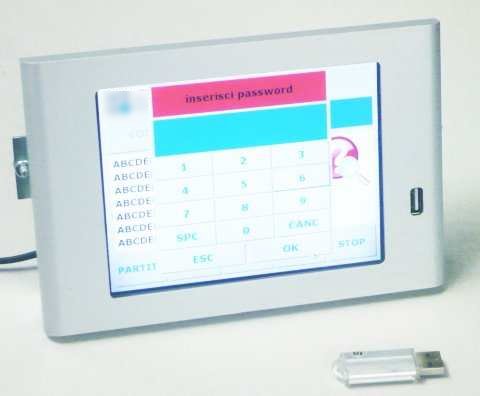
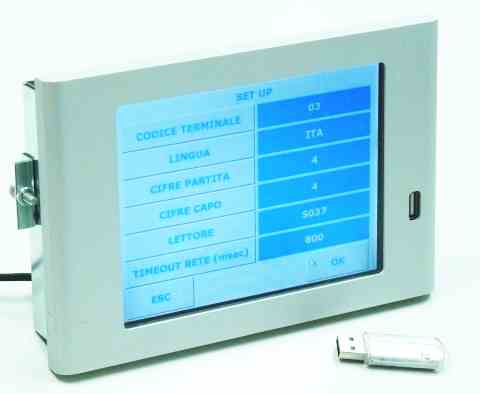
一款基于嵌入式linux的工控HMI

 
它最大的特点是,可以使用python来写界面程序,应该是使用一个QT的python绑定接口。但是十分怀疑在只能跑到200MHZ的ARM9 ep9315上跑python写的程序的速度,我可是深有感触,在PC机上都很慢,但是当然开发速度会大大提高,而且很方便!!
 
但是看到这个产品,对SAM9263跑linux有了一些信心!连python都可以!!一个方案是linux + xorg + gtk,直接使用gtk写程序,省去窗口管理器等等的部件,但是有某种机制启动gpe或opie等窗口环境以进行其他操作,也可以通过密码授权。
 
///////////////////////////////////////////////////////////////////////////////////////////////////////////////////////////////////
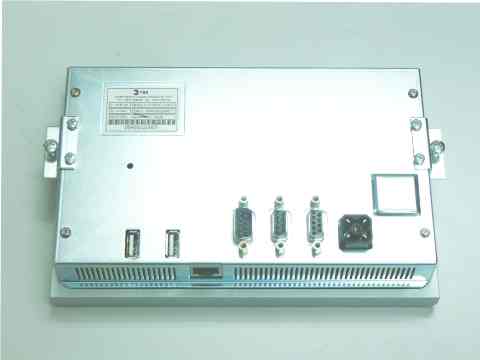
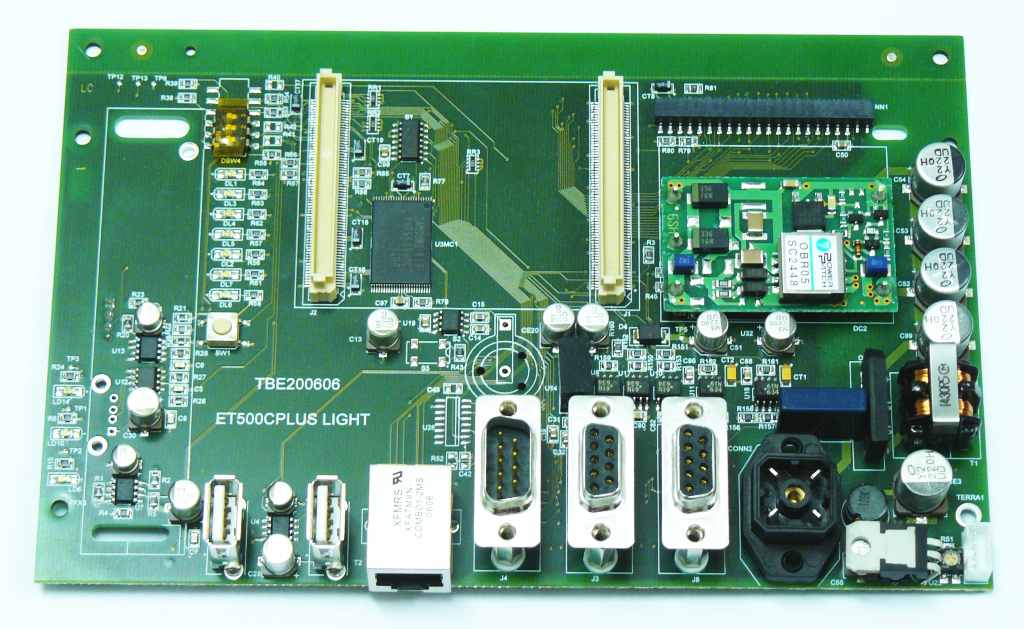
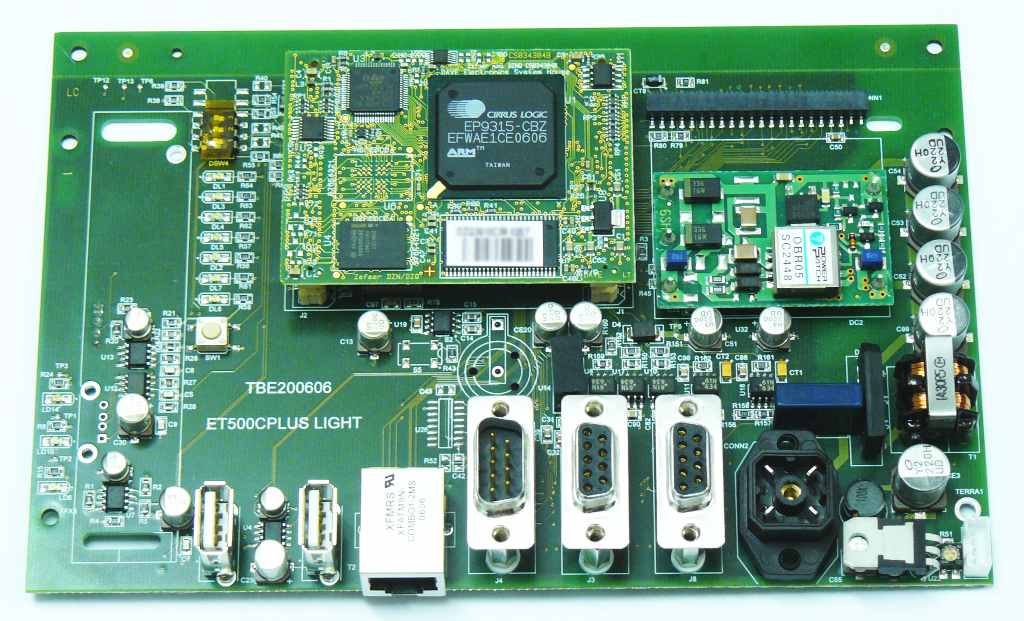
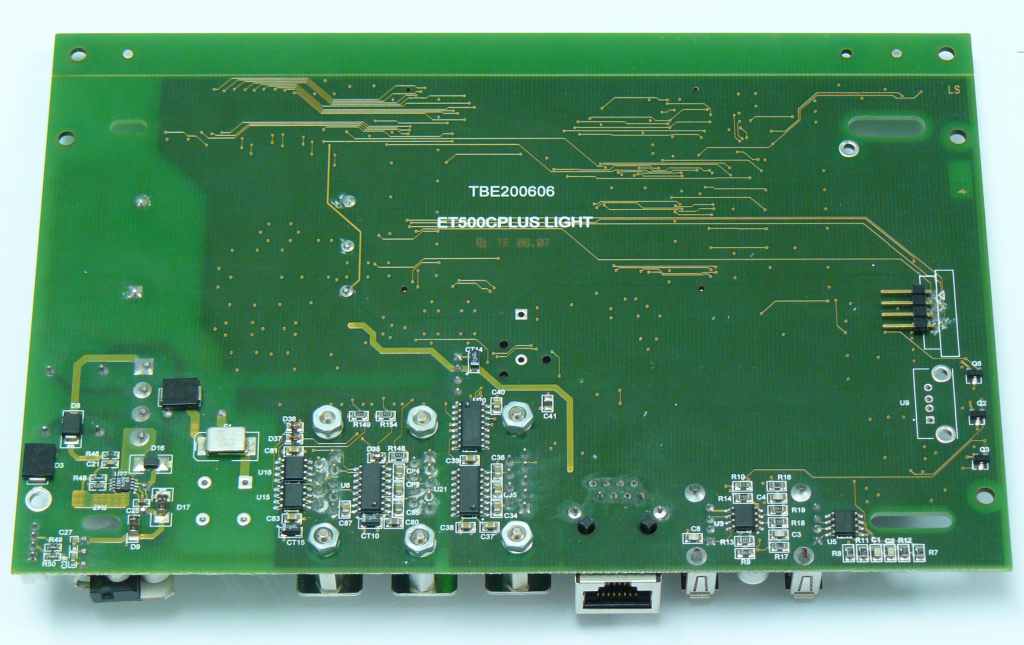
TBE Products: ET500c   - (italian version)

Panel PC for industrial automation, based on arm (ARM9) processor and Gnu Linux-embedded, for operator interface on industrial applications and/or control unit and master of communication.

Industrially compact and robust, with LCD and Touch-screen, provides the potential for development of a small PC.

The versatility of the GUI libraries and development environment allows integration with distributed systems and makes it therefore suitable as user interface for several applications among which:

  • domotics/Building Automation
  • access management/access control.

Sold also in SBC (single board computers) version for OEM applications

If You are a systems integrator interested in our products, please read the page: synergies
Terminale Grafico arm-Linux python-powered
photo by Ruggero ET500c_0 ET500c_1 ET500c_2 ET500c_3   [torna all'inizio] versione SBC (click to enlarge): et500c_sbc_00 et500c_sbc_01 et500c_sbc_02 CPU:
  • ARM9 (920T core) @200 MHz with MMU (EP9315 Cirrus Logic).
Memories:
  • Cache 16K instructions +16K data.
  • SDRAM 64 MBytes.
  • Flash NOR 32 MBytes.
  • EEPROM internal 16 kbit.
Interfacce:
  • LCD TFT VGA (640x480) � 6.4".
  • Optional: LCD TFT WVGA (800x480) � 7.4".
  • Touch screen.
  • Ethernet 10/100 Mbs.
  • USB 3 ports Host 2.0 full speed.
  • UART 3 ports 16550 compatible.
  • Debug JTAG IEEE 1149.1 Test Access Port.
Software: Development environment:
  • gnu tools-chain and utilities for a complete cross-development environment for Linux PC (distro independent).
  • Qt-Designer for GUI development.
  • Qt-virtual framebuffer for PC emulation.
  • Optional: Framework for application development dedicated to process-control/HMI, based upon: Python (2.4) (www.python.org). and Qt-embedded (3.x) (www.trolltech.com) It allows the development of apps without the need of a compilation step. Using Python interpreter and socket communication it let the developer writing her/his application with just a text processor over any platform (Linux, Windows(tm), Mac(tm), etc.)
  • Demo apps.
Power:
  • 24V DC - 0.5 A.
Mech. dimensions:
  • 196 mm x 130 mm x 56 mm.

2008年12月19日星期五

[转帖]Secure CRT 乱码 问题 解决

http://blog.csdn.net/FocusOnACE/archive/2008/09/15/2932727.aspx

在中文windows上,使用securecrt ssh FC, ubuntu等 2.6 kenerl 的linux,编译和man的时候,经常会出现乱码。这个问题困扰了我好久。
昨天晚上才发现,2.6 kernel的ssh默认编码是UTF 8,将securecrt的编码也改成UTF 8,嗯,问题解决了。
修改方法:
Options -> Session Options -> Apperance -> Fonts -> Character。写下来发现,SecureCRT的配置真是折腾人阿。

++++++++++++++++++++++++++++++++

一直以来,我的secureCRT设置都还算好看,字体大小合适,颜色都有。

用起来也挺分别顺手,就是有一个很致命的毛病:

文字copy总是会出现乱码。

比如:声声醉如兰 五个字符,copy出来粘贴到记事本上,就成了"éùéù×íè?à?"。

从SecureCRT复制到SecureCRT也是乱码。

同事那就没有这个问题,用得好好得。

可能是我们的设置不大一样。

对比了一下区别,有这样几个地方:

1,Emulation

Terminal 选择的是Linux,并且选中"ANSI Color"

2,Appearance

Font 选择的是vt100 12pt

没有选中"Use Unicode line drawing characters"

在Character 选择的Default,不知道和这有没有关系。

另外,在linux系统中,LANG环境变量设置的是:zh_CN.gb2312,他们是:en_US

于是,我就把这几个因素综合起来考虑,改来改去。

也算运气好,在别人提示下,总算找到了一个正确的设置。

再仔细的分析下去,发现问题出在了字体上面。

我原来用的是vt100 12pt,SecureCRT默认安装设置的这个字体。

尝试了几个常用字体,发现有的会程序乱码,有的不会出现。

不会有乱码的是:fixedsys,新宋体,宋体

会出现乱码的是:vt100,courier,courier new

乱码的原因没有找到,猜测是编码的问题。

如果你也出现乱码,建议把字体换换。还成fixedsys吧。

有个无聊的情况就是,在替换的时候,有可能还是乱码,但坚持换几次,

就会正常。绝对让人莫名其妙。

结论:

最大的废话是:我也没有找到具体原因是什么。

不过呢,可能性最大的是字体。因为用fixedsys字体不会有乱码问题,而用vt100就可能会有哦。

characer的编码设置是否有关系,暂时不大清楚。设置成default应该没有问题。

和服务器端的环境变量应该也没有什么关系。

比如:LANG为 zh_CN.gb2312 或者 en_US.UTF-8,都可以的。

和vim的编码设置应该也没有关系。

和终端设置也没有关系,选择linux或者vt100或者xterm都不会出现乱码。

----------------------------

现在说说secureCRT的设置

字体:

建议用fixedsys,这个字体虽然不是最美丽的,但在终端上也是一个不错选择,大家都可以接受。

选择它,主要是因为它大小固定,在所有地方显示,效果都一样。

大家都知道,如果有人把tab设置成4个空格,有人设置成8个,那么同样一个程序,本来很美观的一个程序,到别人电脑上就不美观了。

同样,如果字体大小设置得不一致,也会出现这种问题。

所以,我一般都建议大家把字体设置成统一的fixedsys。

Linux终端是有颜色的。

vim也是可以打开颜色的。

为什么很多人都不喜欢把两者的颜色打开呢。

secureCRT设置:

Terminal ->Emulation ->ANSI Color 选中就可以了。

2008年12月18日星期四

Pandora Ångström and OMAP 3530

 I want to have a Beagle Board  based on OMAP 3530 SoC(arm Cortex A8) , only $150 or a Pandora. It's so powerful.There is a demo video of  Pandora based on OMAP 3530 and running Angstrom linux, very fast , just like the ubuntu linux desktop.http://www.angstrom-distribution.org/
http://www.linuxdevices.com/news/NS2315196306.html
http://en.wikipedia.org/wiki/Pandora_(console)

LPC2214+RA8835(SED13305)单色液晶显示

最近做一个LPC2214+RA8835(SED13305)单色液晶显示的东西,今天调试突然发现,LPC2214的主频升到48MHZ,液晶初始化就失败了!我的液晶控制器
RA8835挂在外部总线BANK2上。BCFG3的设置如下:
//#define RA8835_IDCY ((uint32)19) //the min system cycle time for RA8835 = 550ns 550 - 180 = 370ns 19*20 = 380ns
//#define RA8835_WST1 ((uint32)6 << 5) //read cycle time = WST1 + 3 = 9 9×20=180ns
//#define RA8835_WST2 ((uint32)7 << 11) //write cyle time Tcp(WE low time)=WST2 + 1 = 8 8*20 = 160 n
下降到36MHZ就可以了,很是诡异!因为根据数据手册,这样设置是可以的。而且每两次操作之间加延时也不行!

最后发现,IDCY位只有4位,最大为15,所以#define RA8835_IDCY ((uint32)19) 是不正确的,再一个是我的延时函数被KEIL默认的优化等级优化了!
IDCY设为最大15,延时函数里的变量加上volatile,问题解决。

延时函数:
static void Nop(void)
{
#if SED_CONFIG_DELAY
volatile INT8U i;
for(i=0;i<SED_DELAY_CYCLES_NUM;i++);

2008年12月17日星期三

ubuntu linux 8.04下修改mac地址

  因公司内IP与MAC绑定,且不能人人上网,只能通过更改MAC来上网。经搜索,有以下方法:
1,
直接编辑/etc/network/interfaces文件,在if ace eth0 inet static后面添加一行:
pre-up ifconfig eth0 hw ether xx:xx:xx:xx:xx:xx(要改成的MAC)
2,
打开文件:/etc/iftab
修改内容:
eth0 mac 00:e0:4d:75:8e:50(改成你要的物理地址mac)
3,
先网卡"关闭" 
# ifconfig eth0 down
更换物理地址,把粗体部分更换为你要换的MAC地址: 
# ifconfig eth0 hw ether AA:BB:CC:DD:EE:FF
启用eth0。 
 # ifconfig eth0 up
重启网络服务
sudo /etc/init.d/networking restart
该方法只能临时修改。
4,
编辑/etc/network/interfaces,找到与eth0有关的地方,修改到形如: 
allow-hotplug eth0
iface eth0 inet dhcp
#iface eth0 inet static
#   address 1.1.1.6
#   netmask 255.255.255.0
#   gateway 1.1.1.1
     hwaddress ether 00:AA:BB:CC:DD:EE
经实验,这个方法好像不行。
5,
修改/etc/rc.local文件
sudo /sbin/ifconfig eth0 down
sudo /sbin/ifconfig eth0 hw ether 00:14:2a:34:4e:43
sudo /sbin/ifconfig eth0 up


我只实验了第4,5个方法,4不行,5可以。


[广告] 重奖 悬赏kfc3v3 球衣

2008年12月16日星期二

birthday

Yestoday is my birthday!!! Last year, I recieved a neckerchief, and this year I even haven't recieved a message! Haha, everyone is very busy, may be!

2008年12月15日星期一

编译angstrom for at91失败解决

| make[3]: Leaving directory `/home/yu/stuff_old/tmp/work/armv5te-angstrom-linux-gnueabi/binutils-cross-2.17.50.0.5-r1/binutils-2.17.50.0.5/build.i686-linux.arm-angstrom-linux-gnueabi/bfd'
| make[2]: *** [info-recursive] Error 1
| make[2]: Leaving directory `/home/yu/stuff_old/tmp/work/armv5te-angstrom-linux-gnueabi/binutils-cross-2.17.50.0.5-r1/binutils-2.17.50.0.5/build.i686-linux.arm-angstrom-linux-gnueabi/bfd'
| make[1]: *** [all-bfd] Error 2
| make[1]: Leaving directory `/home/yu/stuff_old/tmp/work/armv5te-angstrom-linux-gnueabi/binutils-cross-2.17.50.0.5-r1/binutils-2.17.50.0.5/build.i686-linux.arm-angstrom-linux-gnueabi'
| make: *** [all] Error 2
| FATAL: oe_runmake failed
NOTE: Task failed: /home/yu/stuff_old/tmp/work/armv5te-angstrom-linux-gnueabi/binutils-cross-2.17.50.0.5-r1/temp/log.do_compile.21862
NOTE: package binutils-cross-2.17.50.0.5-r1: task do_compile: failed
ERROR: TaskFailed event exception, aborting
NOTE: package binutils-cross-2.17.50.0.5: failed
ERROR: Build of /home/yu/stuff_old/org.openembedded.dev/packages/binutils/binutils-cross_2.17.50.0.5.bb do_compile failed
ERROR: Task 265 (/home/yu/stuff_old/org.openembedded.dev/packages/binutils/binutils-cross_2.17.50.0.5.bb, do_compile) failed
NOTE: Tasks Summary: Attempted 119 tasks of which 0 didn't need to be rerun and 1 failed.
ERROR: '/home/yu/stuff_old/org.openembedded.dev/packages/binutils/binutils-cross_2.17.50.0.5.bb' failed

参考:
http://bugs.sourcemage.org/show_bug.cgi?id=14015

下面是binutils 2.18的patch,参照可修改2.17的congigure
////////////////////////////////////////////////////////////////
Submitted By: Matt Burgess (matthew at linuxfromscratch dot org)
Date: 2007-11-19
Initial Package Version: 2.18
Origin: Upstream (http://sourceware.org/cgi-bin/cvsweb.cgi/src/configure.diff?r1=1.268&r2=1.268.2.1&cvsroot=src)
Upstream Status: Applied
Description: Fixes the configure script to correctly dictate Texinfo > 4.9.

diff -Naur binutils-2.18.orig/configure binutils-2.18/configure
--- binutils-2.18.orig/configure 2007-08-06 20:29:40.000000000 +0000
+++ binutils-2.18/configure 2007-11-18 22:37:58.000000000 +0000
@@ -6128,7 +6128,7 @@
# For an installed makeinfo, we require it to be from texinfo 4.4 or
# higher, else we use the "missing" dummy.
if ${MAKEINFO} --version \
- | egrep 'texinfo[^0-9]*([1-3][0-9]|4\.[4-9]|[5-9])' >/dev/null 2>&1; then
+ | egrep 'texinfo[^0-9]*(4\.([4-9]|[1-9][0-9])|[5-9]|[1-9][0-9])' >/dev/null 2>&1; then
:
else
MAKEINFO="$MISSING makeinfo"
/////////////////////////////////////////////////////////////

2008年12月11日星期四

ubuntu linux下openocd + gdb-insight调试arm程序

openocd + gdb-insight调试

openocd版本为svn 1214,insight版本为6.8 开发环境为ubuntu-8.04 包都升级到最新。2008.12.8
板子为自己设计的LPC2294的板子,BANK0 为SST39VF1601,BANK1为issi61lv25616al。

首先安装usb驱动库:
下载libusb-0.1.12 (地址google上搜)
解压
./configure
make
make install

openocd 安装
#./bootstrap
#./configure --enable-jlink (我使用的jtag调试工具是jlink)
#make
#make install
卸载时使用make uninstall即可,当然别删了makefile文件

insight安装
下载 解压
yu@yu-desktop:~/e-work/insight-6.8$ cd ..
yu@yu-desktop:~/e-work$ mkdir insight-arm
yu@yu-desktop:~/e-work$ cd insight-arm
yu@yu-desktop:~/e-work/insight-arm$
../insight-6.8/configure --target=arm-linux-gnueabi --enable-sim --prefix=/usr/local/insight-arm-6.8 --with-termlib=ncurses
我使用的edlk-4.2编译的arm程序,工具前缀都是arm-linux-gnueabi, 所以--target=arm-linux-gnueabi,我们安装到/usr/local/insight-arm-6.8,
因为我们安装的是交叉工具链,有时候需要安装多个版本,所以每个分别安装的不同目录,使用时把相应的目录加入PATH,避免版本之间出错。在工作目录建立source文件,内容为:
///////////////////////////////////////////////////////////////////////
#export CROSS_COMPILE=arm-elf-
export CROSS_COMPILE=arm-linux-
export PATH=/home/yu/e-work/eldk/usr/bin:/usr/local/insight-arm-6.8/bin:${PATH}
#export PATH=/home/yu/e-work/eldk/usr/bin:/usr/local/insight-arm-6.6/bin:${PATH}
#export GUI_LIBRARY=/usr/local/insight-arm-6.8/lib
echo "Altered environment for u-boot Development"
//////////////////////////////////////////////////////////////////////
当然要先安装libncurses5及libncurses5-dev(头文件 库等),在新立德软件管理器内搜即可。

在工作目录(我的是/home/yu/e-work)建立openocd.cfg,内容如下:
////////////////////////////////////////////////////////////////////////////////////////////
#daemon configuration
telnet_port 4444
gdb_port 1000
tcl_port 6666

# GDB can also flash my flash!
#gdb_memory_map enable
gdb_memory_map disable #我的insight不支持
#gdb_flash_program enable

gdb_breakpoint_override soft
#gdb_detach reset

#interface
interface jlink
#jtag_speed 0 #Note that the JTAG speed is given in kHz with 0 meaning to autodetect.
#may be I should use jtag_speed 3000, because the speed is too slow!!!! usb drivers's fault???
#jtag_rclk 3000
jtag_speed 3000

#delays on reset lines
jtag_nsrst_delay 200
jtag_ntrst_delay 200

#use combined on interfaces or targets that can't set TRST/SRST separately
#reset_config trst_and_srst srst_pulls_trst
reset_config trst_and_srst

#hard reset the system to a reliable state
#jtag_reset srst
#sleep 500

# It has atmel lpc2294 chip.
source [find lpc2294.cfg]

# The board has a NOR flash on CS0
#flash configuration
#flash bank <driver> <base> <size> <chip_width> <bus_width> [driver_options ...]
#flash bank cfi 0x80000000 0x00200000 2 2 0 #jedec_probe #haven't surport FOR sst39vf1601

#Enable use of the DBGRQ bit to force entry into debug mode. This should be safe for all but ARM7TDMI�S cores
# (like Philips LPC).
#arm7_9 dbgrq enable
#if set this command in the upper line, openocd willn't recognize this command!
arm7_9 dbgrq disable

proc psm-c30-a_init { } {

# Force target into ARM state
soft_reset_halt

#force cpu go into Supervisor Mode, and disable IRQ and FIQ
#mww cpsr 0xd3 use this command will make cpu issue data abort
arm7_9 write_xpsr 0xd3 0

#Disable PLL
mww 0xe01fc080 0x0

#remap interrupt vector to onchip flash
mww 0xe01fc040 0x00000001

#init the bus
mww 0xe002c014 0x0f810914

#BCFG0
mww 0xffe00000 0x1000feff

#BFG1
mww 0xffe00004 0x1000feff

#probe on chip flash
flash probe 0

}

$_TARGETNAME configure -event gdb-attach psm-c30-a_init #gdb来连接的时候执行这个事件!

init

//////////////////////////////////////////////////////////////////////////////////////
openocd的文档没有很仔细的看,但是感觉各版本的命令区别很大。
mww命令如果不再事件函数中就会不能识别此指令。arm7_9 dbgrq disable如果放在source [find lpc2294.cfg]前也会不能识别。
所以指令的次序也很重要!可能在搜索到tap之前有些指令还不能执行!
gdb_memory_map disable 是因为我的insight带的gdb编译时默认没有打开parse XML memory map选项,具体怎么打开,还没有看,configure --help应该有。arm7_9 dbgrq disable因为lpc必须关闭。使用arm7_9 write_xpsr 0xd3 0,而不使用mww写cpsr是因为使用后者会报错,提示引起data abort。
reset_config trst_and_srst 我的jtag复位和系统复位是分别控制的。
发现如果使用jtag_rclk 3000,即先使用rclk自己搜索jtag工作频率,速度会很慢。另外我的sst39vf1601不是cfi全兼容的,目前openocd还不支持,但是openocd的maillist上有人修改源码支持,还没有进一步的分析。lpc2294.cfg在openocd源代码的src/target/target目录下有。也要放在当前工作目录,从而使得openocd能找到,我的lpc2294.cfg的内容:
if { [info exists CHIPNAME] } {
set _CHIPNAME $CHIPNAME
} else {
set _CHIPNAME lpc2294
}

if { [info exists ENDIAN] } {
set _ENDIAN $ENDIAN
} else {
set _ENDIAN little
}

if { [info exists CPUTAPID ] } {
set _CPUTAPID $CPUTAPID
} else {
# force an error till we get a good number
# set _CPUTAPID 0xffffffff
set _CPUTAPID 0x4f1f0f0f #此处要修改成你的cpu的id
}


#jtag scan chain
jtag newtap $_CHIPNAME cpu -irlen 4 -ircapture 0x1 -irmask 0xf -expected-id $_CPUTAPID

set _TARGETNAME [format "%s.cpu" $_CHIPNAME]
target create $_TARGETNAME arm7tdmi -endian $_ENDIAN -chain-position $_TARGETNAME -variant arm7tdmi-s_r4
$_TARGETNAME configure -work-area-virt 0 -work-area-phys 0x40000000 -work-area-size 0x4000 -work-area-backup 0

#flash configuration
#flash bank lpc2000 <base> <size> 0 0 <target#> <variant>
#flash bank lpc2000 0x0 0x40000 0 0 0 lpc2000_v1 14765 calc_checksum
#主频要修改成此时你的处理器的频率,特别是如果处理器内部已经烧写了程序时,要设置成你的那个程序设置的频率。
#而不是gdb attach时的频率。
#内部flash配置
flash bank lpc2000 0x0 0x40000 0 0 0 lpc2000_v1 48000 calc_checksum

# For more information about the configuration files, take a look at:
# openocd.texi
我的gdb初始化脚本文件:
/////////////////////////////////////////////////////
#GDB 6.8 and higher set any memory area not in the memory map as inaccessible, this can be changed to the old behaviour by #using the following gdb command.
set mem inaccessible-by-default off

#Previous versions of OpenOCD required the following gdb options to increase the packet size and speed up gdb communication.
#This is now handled in the qSupported PacketSize.
#但是现在如果去掉,还是出现(openocd那边):Warning:acknowledgment received, but no packet pending
#Warning:negative reply, retrying
#Error: GDB missing ack(2) - assumed good
#Warning:negative reply, retrying
#之类的错误,gdb的console窗口也会出现错误。

set remote memory-write-packet-size 1024
set remote memory-write-packet-size fixed
set remote memory-read-packet-size 1024
set remote memory-read-packet-size fixed

target remote localhost:1000
monitor sleep 500
monitor poll
monitor soft_reset_halt

#set fuction breakpoints
#break main

#No symbol table is loaded. Use the "file" command.
#how to load symbol table ???

#load /home/yu/e-work/u-boot-2008.10/u-boot

#continue to run the program
#continue
////////////////////////////////////////////////////
然后在openocd.cfg所在的目录执行openocd即可启动gdbserver。
然后在工作目录执行source source 建立path,然后执行arm-linux-gnueabi-insight -x insight.gdb /home/yu/e-work/u-boot-2008.10/u-boot
即可启动insight,再dowload即可调试了。可以在insight的cosole窗口通过monitor step等执行openocd的命令,monitor help看看都可以执行那些openocd的指令,help看看可以执行那些gdb的指令。

现在有一个问题是,我编译的insight的tcp端口输入框,watch窗口输入框,无法输入,怀疑是编译器或tcl库的bug。
安装预编译的gnuarm-3.4,其自带的insight-6.1情况依旧,故应该是库的缘故!
也可以使用ddd来调试!
ddd只是各种gdb的一个x-window前端, ddd --debugger arm-linux-gdb -x insight.gdb /home/yu/e-work/u-boot-2008.10/u-boot可启动arm的gdb,所以不用交叉编译。
使用新立德安装即可!!

利用u-boot烧写内部和外部FLASH

利用u-boot烧写内部和外部FLASH

处理器使用LPC2214 U-BOOT使用2008.10
工具链使用gcc

有时候程序需要分段烧写到内部和外部flash中,这样,可以利用内部FLASH的加密功能,又可以利用外部FLASH的大容量。而这样烧写比较麻烦,
可以将直接生成的hex文件烧如内部和外部flash的工具好像还没有。可以使用这几个方法,首先将编译生成的hex文件,手工(编程序实现更好,可能使用
其他工具组合也可实现)根据地址分为两个hex文件(hex文件格式较简单),内部flash的和外部flash的,这样就可以使用ISP工具,J-FLASH或,
OPENOCD等工具分别烧写到内部和外部flash。

再一种方法是利用u-boot,首先使用ISP把u-boot烧入内部FLASH,然后使用串口或网口加载应用程序bin文件到ram,再使用u-boot的cp.b指令,根据地址
分别把程序烧写到内部和外部FLASH,当然烧写到外部FLASH的地址偏移要先从u-boot.map文件中得出。如果RAM太小,就需要在编译u-boot时定义:
CFG_DIRECT_FLASH_TFTP:

Enable TFTP transfers directly to flash memory;
without this option such a download has to be
performed in two steps: (1) download to RAM, and (2)
copy from RAM to flash.

The two-step approach is usually more reliable, since
you can check if the download worked before you erase
the flash, but in some situations (when system RAM is
too limited to allow for a temporary copy of the
downloaded image) this option may be very useful.
从而不需要加载到ram中,直接烧写。
这样就也需要分成两个bin文件,使用hex2bin从分开的hex生成即可。试验完毕后即可把启动脚本设置到 bootcmd,从而上电时自动加载烧写。这样可以板子上
设置一个跳线,uboot的startup.s中判断是否启动u-boot还是应用程序。当然如果flash不够大,还可以在使用cp.b命令时,覆盖掉u-boot。

2008年12月8日星期一

build_Angstrom_for_AT91 步骤,结果 失败

/////////////////////////////////////////////////////////////////////////////////////////////////
1,转到root帐户,http://wiki.openembedded.net/index.php/OEandYourDistro 根据debian那一项安装必备软件,根据ubuntu那一项进行设置;
2,安装svn git等
sudo mount -t iso9660 -o loop /media/PROGRAM/Ubuntu-8.04.1-alternate-i386.iso /media/cdrom0/
3,转到普通用户,根据http://wiki.openembedded.net/index.php/Getting_Started安装bitbake和OE;
注意,http://www.linux4sam.com/twiki/bin/view/Linux4SAM/OpenEmbeddedAngstromBuild#How_to_build_Angstrom_for_AT91
使用monotone安装OE的过程已经不再支持了,现在使用git。
Updating OpenEmbedded

4,参照http://www.linux4sam.com/twiki/bin/view/Linux4SAM/OpenEmbeddedAngstromBuild#How_to_build_Angstrom_for_AT91
给OE打Angstrom_for_AT91补丁。
根据http://www.linux4sam.com/twiki/bin/view/Linux4SAM/OpenEmbeddedDirectory 文件夹需要改名openembedded 为org.openembedded.dev
发现不行!!!

///////////////////////////////////////////////////
1,安装新的OE不行,还是要参照http://www.linux4sam.com/twiki/bin/view/Linux4SAM/OpenEmbeddedAngstromBuild#How_to_build_Angstrom_for_AT91安装,注意,在校验md5时,有的md5校验文件内的文件名版本号错误,例如mtn-0.37的,需要手动修改。

2,注意:解压OE-this-is-for-mtn-0.37.mtn.bz2,直接右键单击,选择"解压到此处",会产生一.mtn文件。

3,建立build/conf/文件夹,把local.conf复制到里面,修改内部的路径名。

4,必须要用bitbake1.8.6

5,让安装makeinfo,找不到,安装texinfo即可!

////////////////////////////////////////////////////
还可以通过使用 -R 选项连同子目录下的文件一起设置:
$chmod -R 664 /temp/*
这样就可以一次将/ temp目录下的所有文件连同各个子目录下的文件的权限全部设置为文件属主和属组用户可读和写,其他用户只读。使用- R选项一定要谨慎,只有在需要改变目录树下全部文件权限时才可以使用。


http://limpens.net/trac/sam91-trac/wiki/200805 超级好的!!!还有编译其他的指令
http://limpens.net/trac/sam91-trac/wiki/200801


解决方法:找到arm-elf-tools-20030314.sh文件的第39行,

tail +${SKIP} ${SCRIPT} | gunzip | tar xvf -,

将其改为

tail -n+${SKIP} ${SCRIPT} | gunzip | tar xvf -

我是03的,可以,不知道04的行不!

按照这个装的,最后会显示gzip: stdin: unexpected end of file
不知道行不行!!!
///////////////////////////////////////////////////////////////////////

| make[3]: Leaving directory `/home/yu/stuff_old/tmp/work/armv5te-angstrom-linux-gnueabi/binutils-cross-2.17.50.0.5-r1/binutils-2.17.50.0.5/build.i686-linux.arm-angstrom-linux-gnueabi/bfd'
| make[2]: *** [info-recursive] Error 1
| make[2]: Leaving directory `/home/yu/stuff_old/tmp/work/armv5te-angstrom-linux-gnueabi/binutils-cross-2.17.50.0.5-r1/binutils-2.17.50.0.5/build.i686-linux.arm-angstrom-linux-gnueabi/bfd'
| make[1]: *** [all-bfd] Error 2
| make[1]: Leaving directory `/home/yu/stuff_old/tmp/work/armv5te-angstrom-linux-gnueabi/binutils-cross-2.17.50.0.5-r1/binutils-2.17.50.0.5/build.i686-linux.arm-angstrom-linux-gnueabi'
| make: *** [all] Error 2
| FATAL: oe_runmake failed
NOTE: Task failed: /home/yu/stuff_old/tmp/work/armv5te-angstrom-linux-gnueabi/binutils-cross-2.17.50.0.5-r1/temp/log.do_compile.21862
NOTE: package binutils-cross-2.17.50.0.5-r1: task do_compile: failed
ERROR: TaskFailed event exception, aborting
NOTE: package binutils-cross-2.17.50.0.5: failed
ERROR: Build of /home/yu/stuff_old/org.openembedded.dev/packages/binutils/binutils-cross_2.17.50.0.5.bb do_compile failed
ERROR: Task 265 (/home/yu/stuff_old/org.openembedded.dev/packages/binutils/binutils-cross_2.17.50.0.5.bb, do_compile) failed
NOTE: Tasks Summary: Attempted 119 tasks of which 0 didn't need to be rerun and 1 failed.
ERROR: '/home/yu/stuff_old/org.openembedded.dev/packages/binutils/binutils-cross_2.17.50.0.5.bb' failed